Send an invoice
Put several sessions on one invoice with one pay link, then see when it's paid.
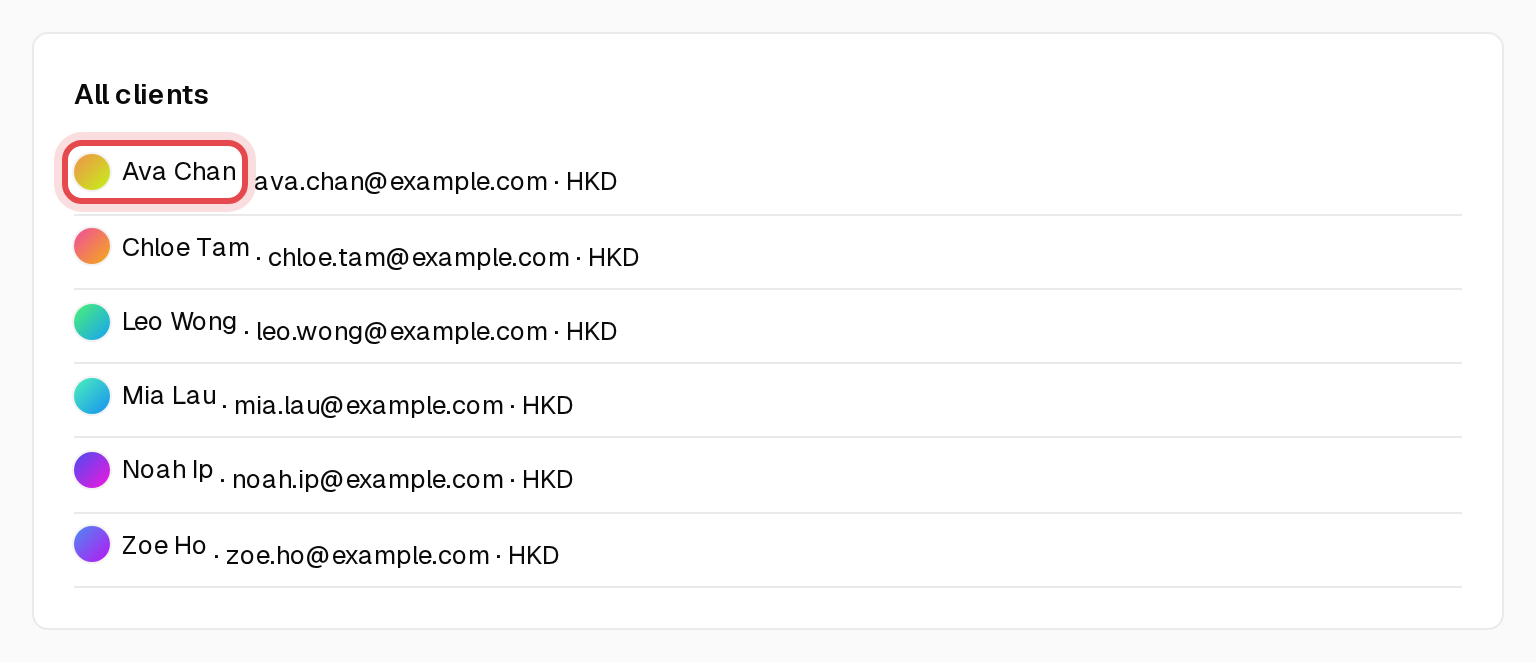
Step 1: Open the client
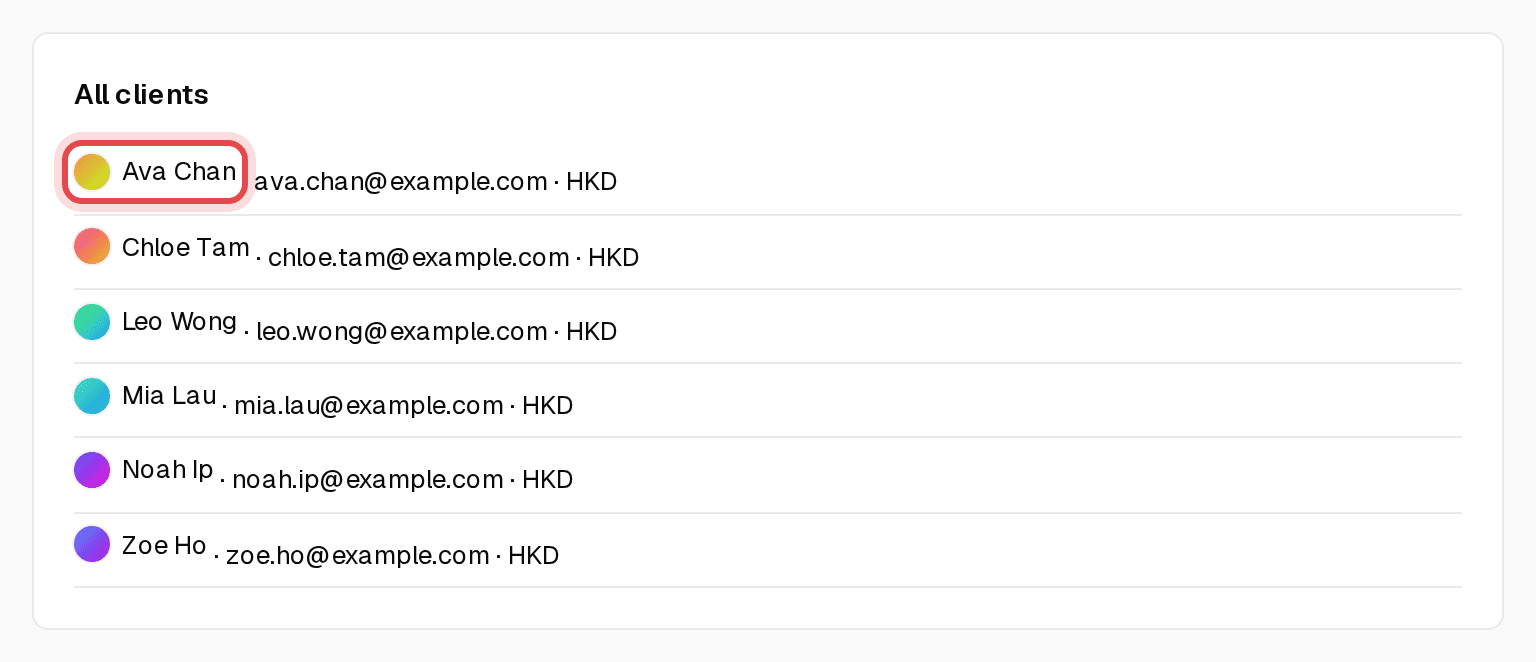
Go to Clients and click their name.
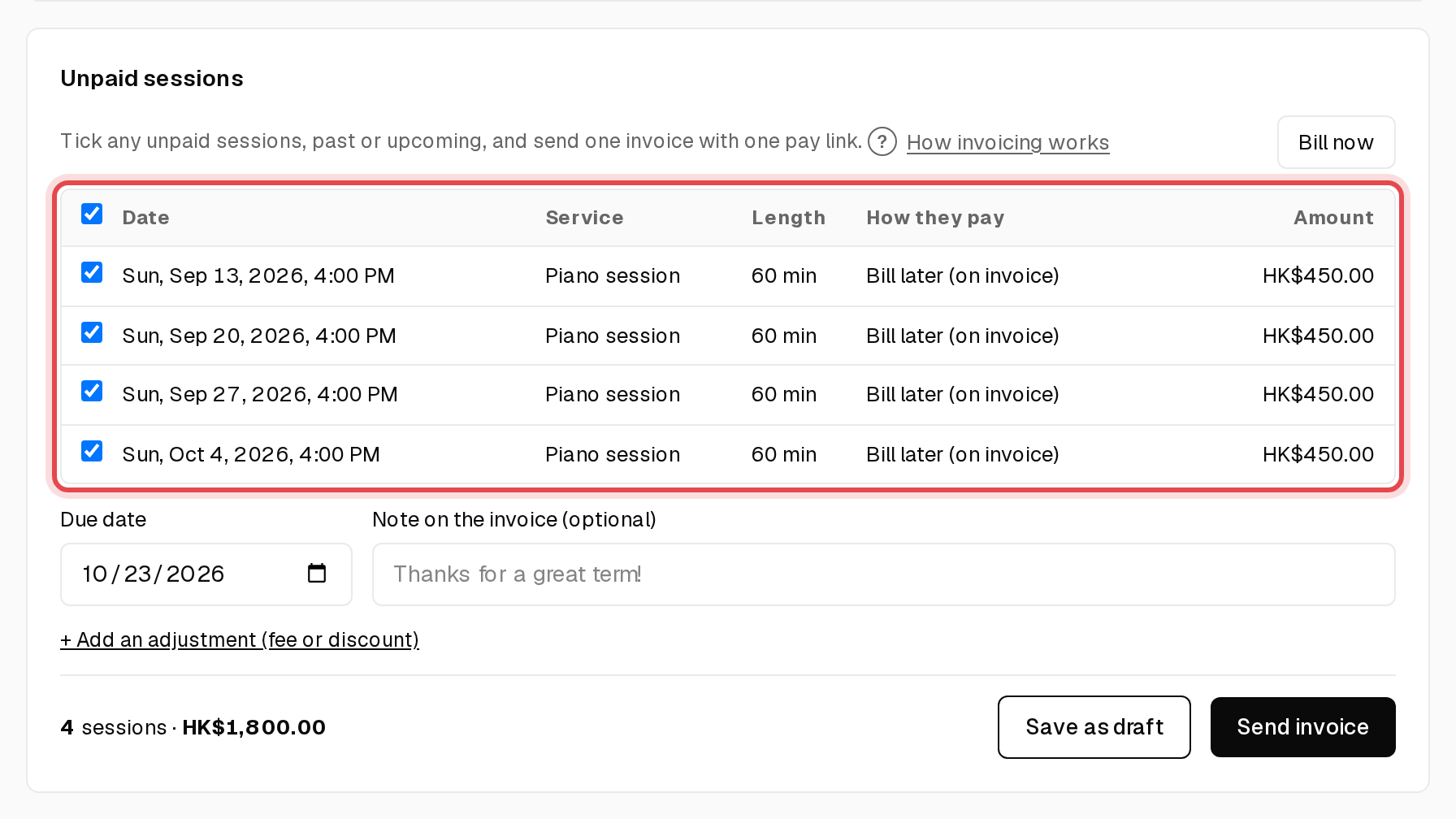
Step 2: Tick the sessions
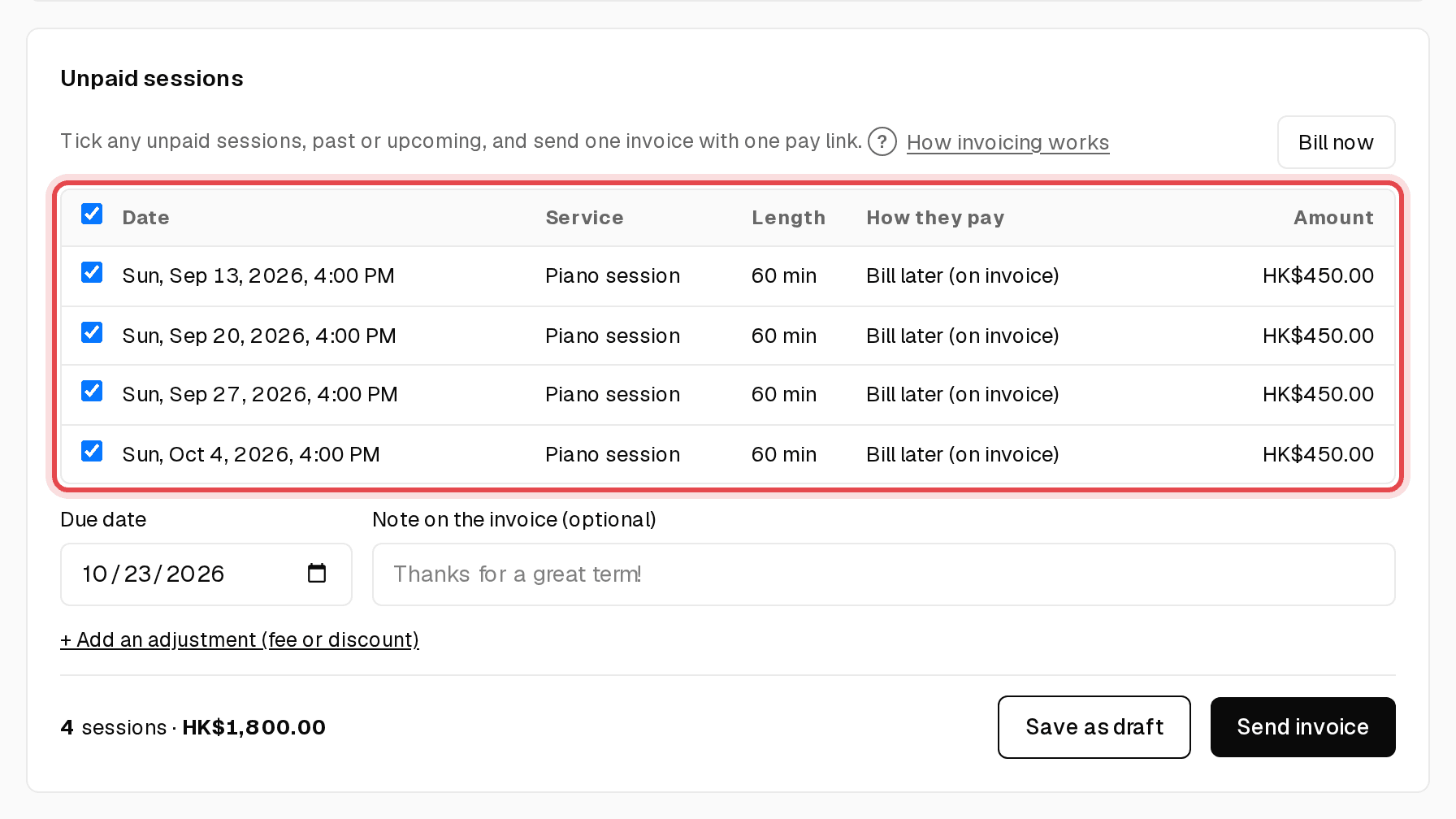
Under Unpaid sessions, tick the sessions to bill. Past ones are ticked for you; you can add upcoming ones too.
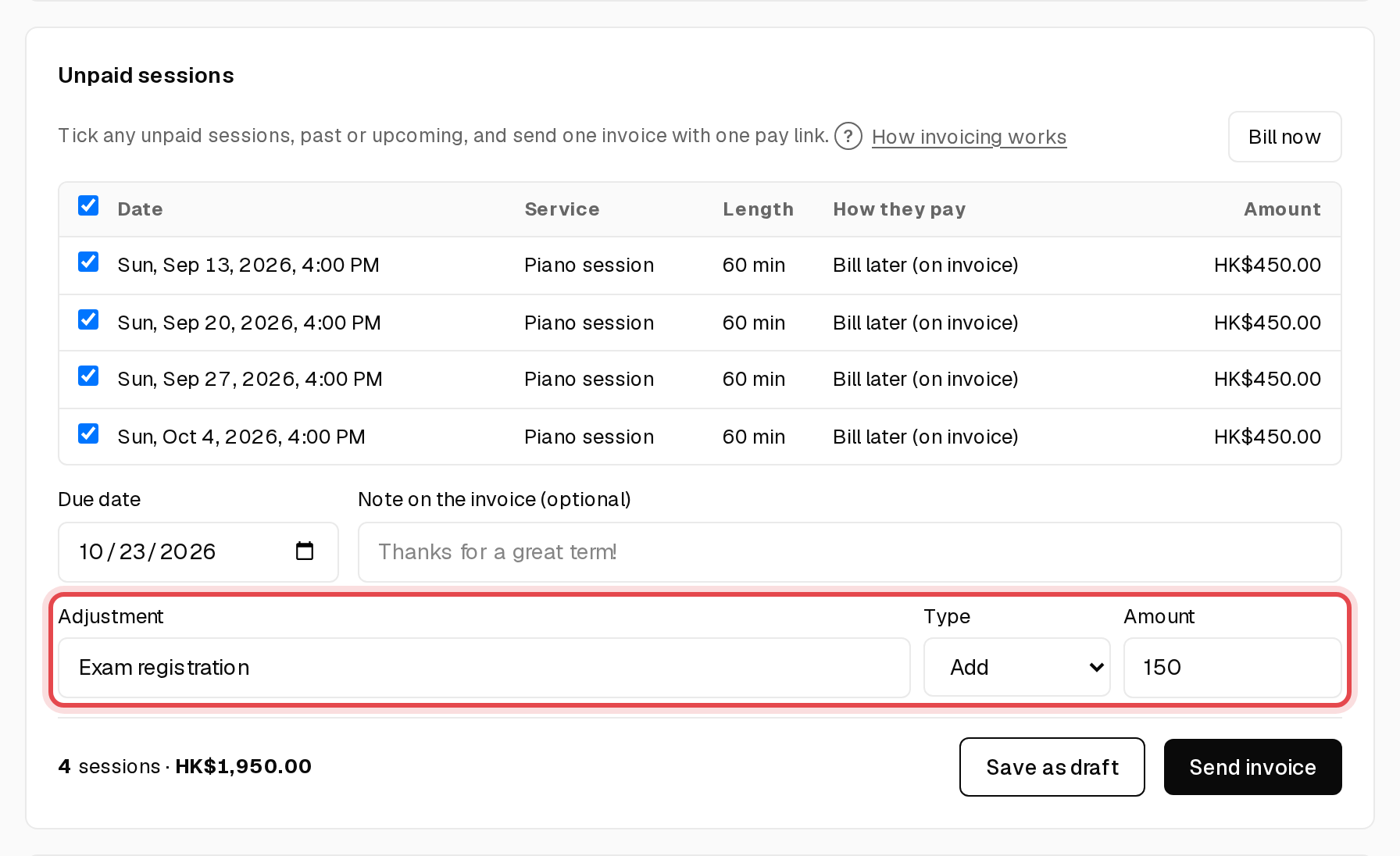
Step 3: Add a fee or discount
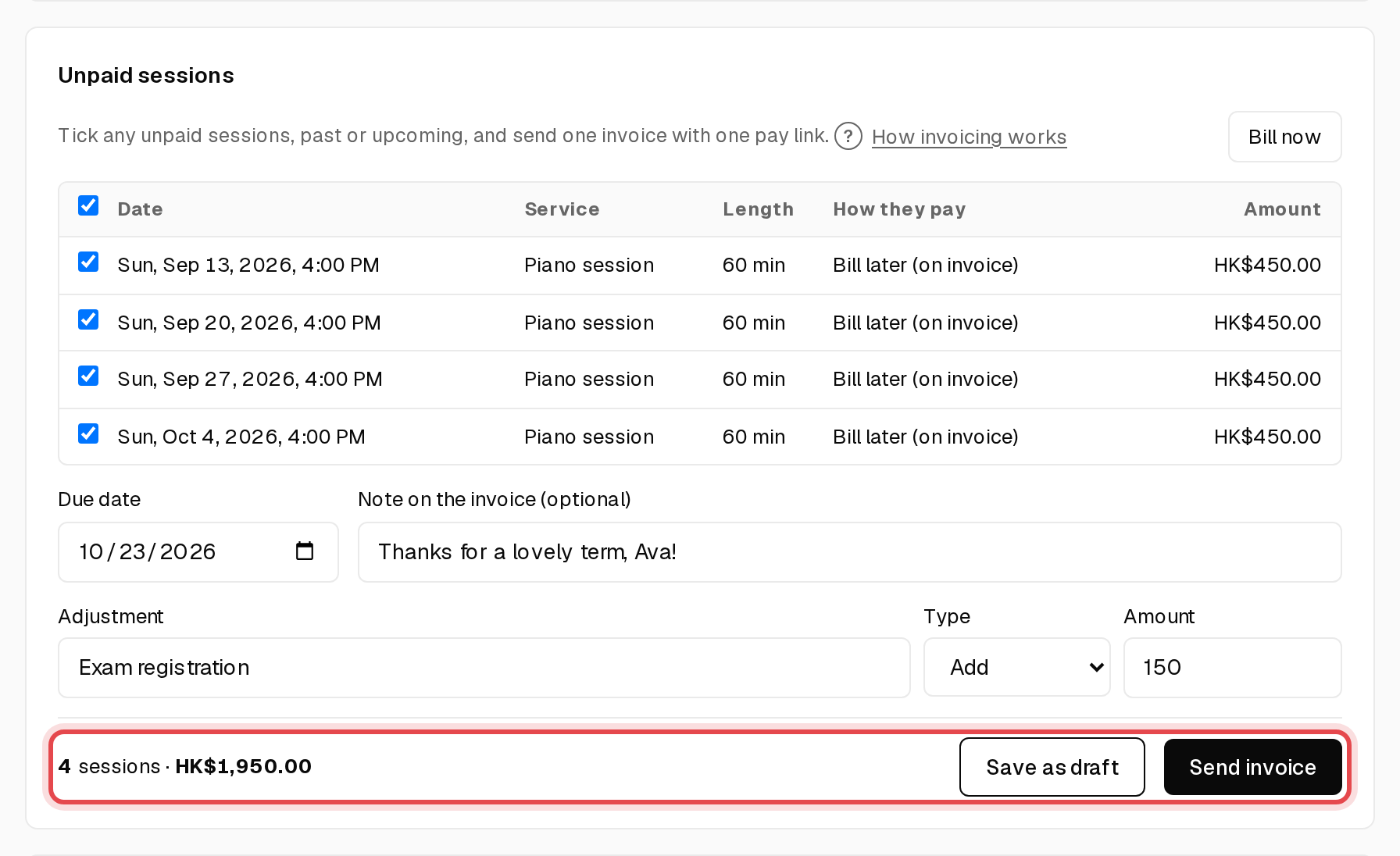
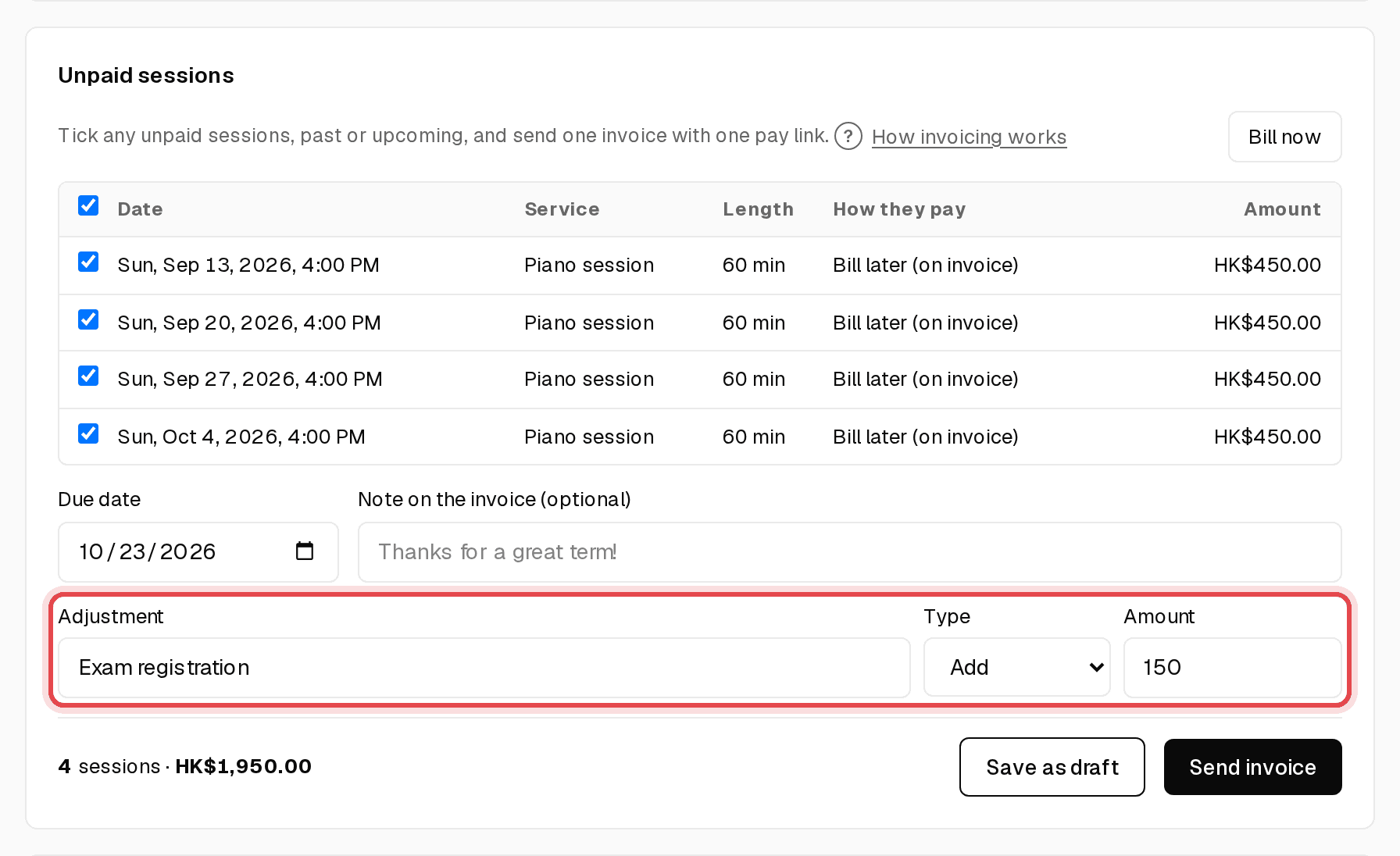
Click + Add an adjustment (fee or discount), name it, choose Add or Discount and enter the amount.
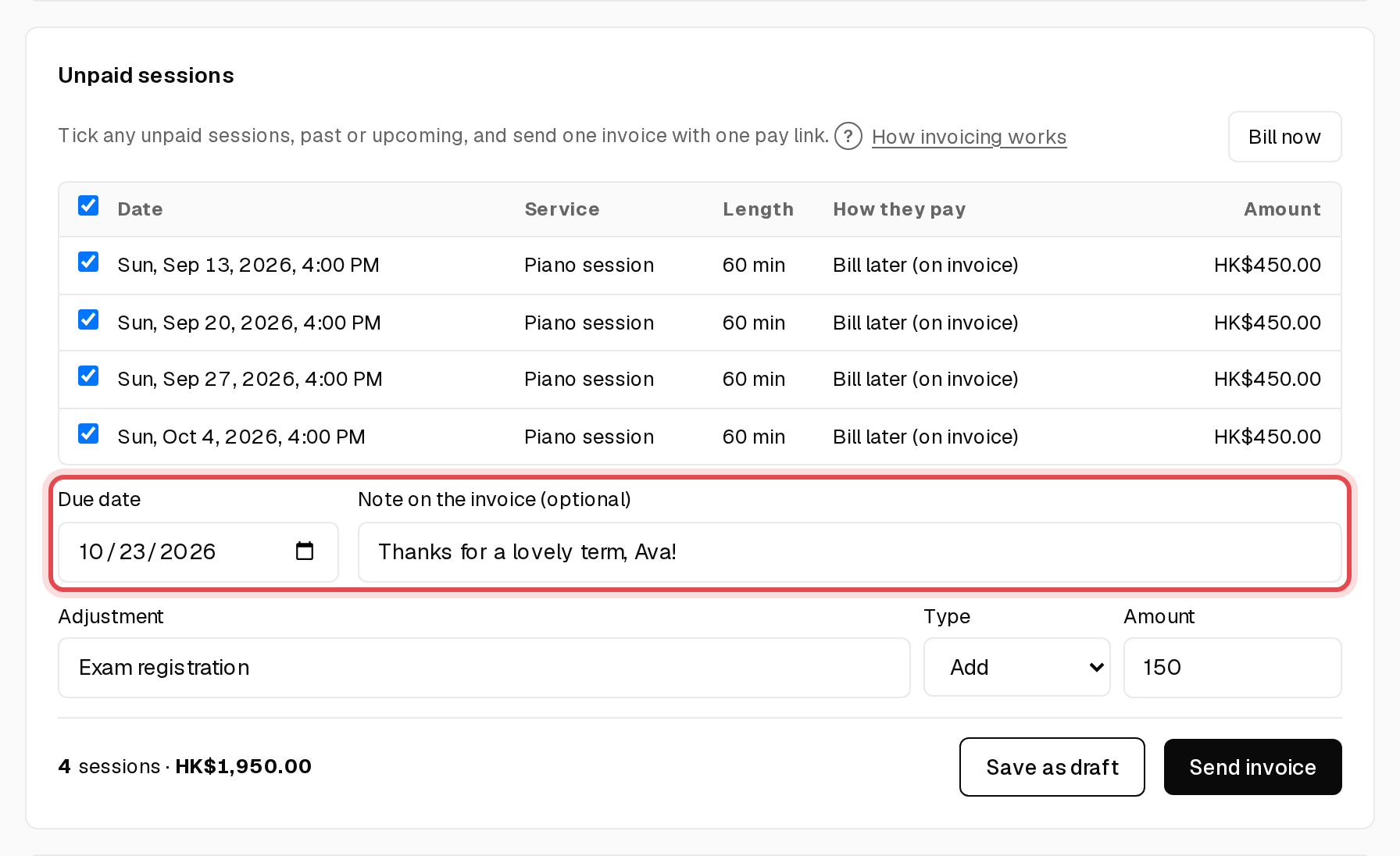
Step 4: Set the due date
Check the Due date and add a Note on the invoice if you like.
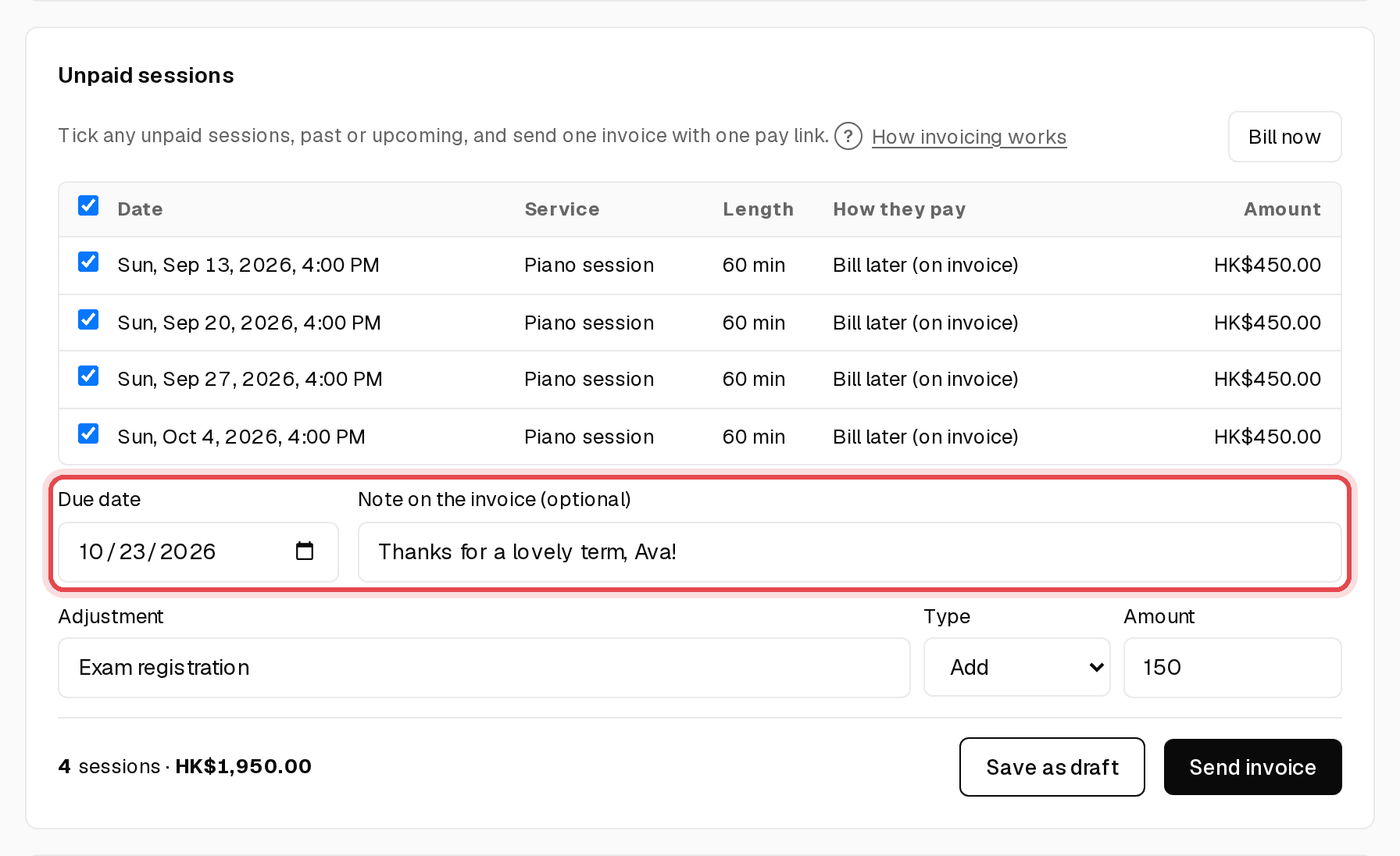
Tip: Change the usual number of days in Invoices & billing on Overview.
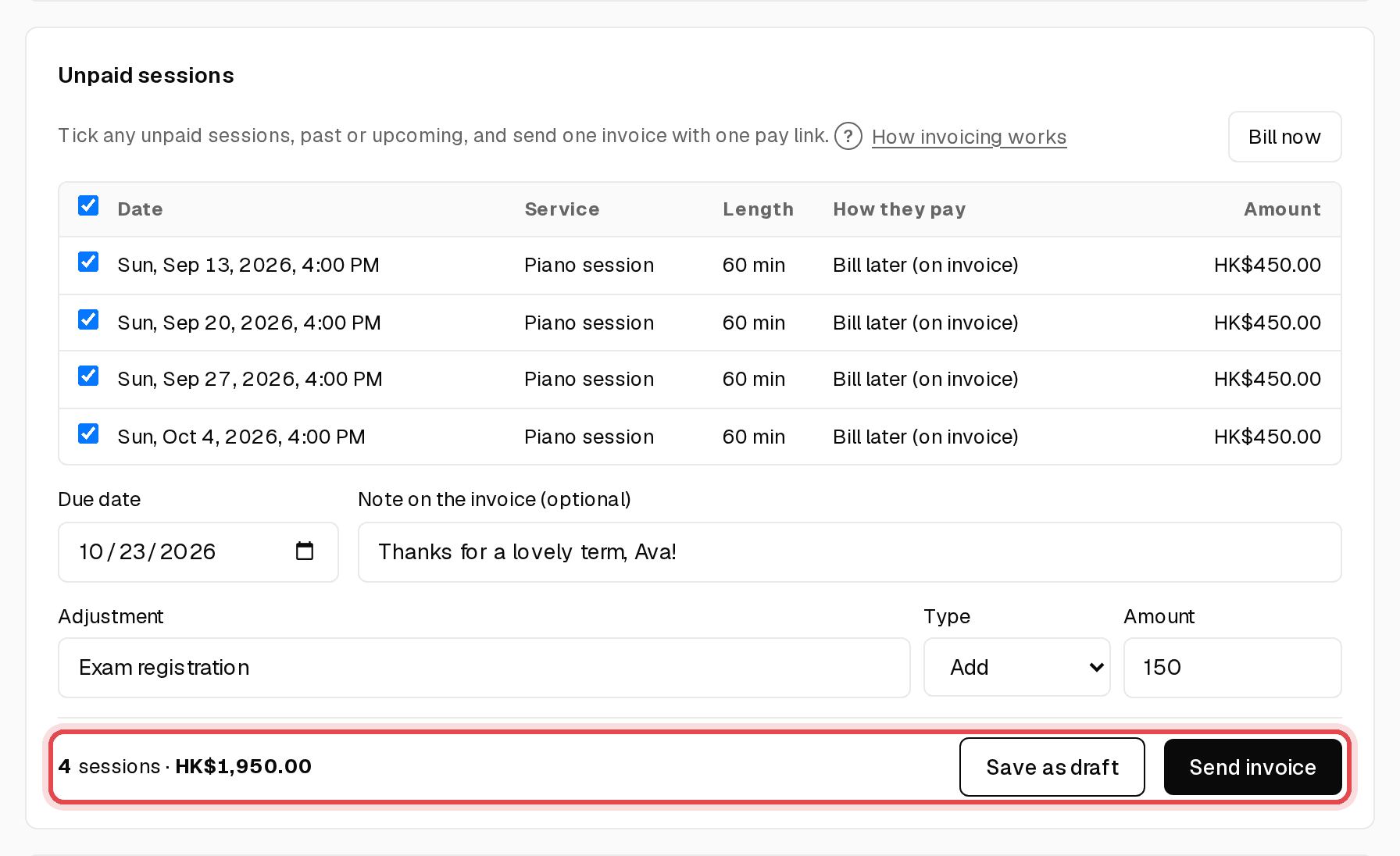
Step 5: Click Send invoice
Your client gets an email with the invoice and one pay link. Not ready? Click Save as draft instead.
Step 6: See it paid
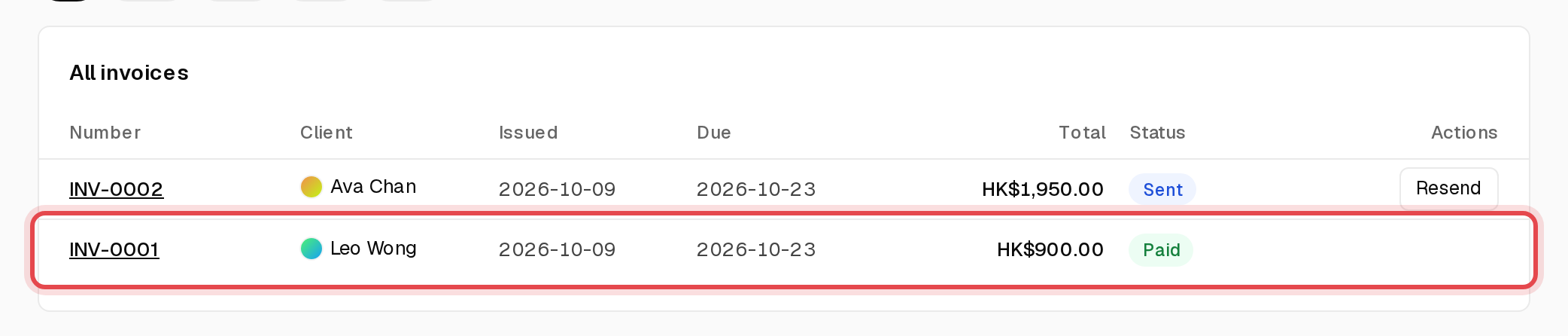
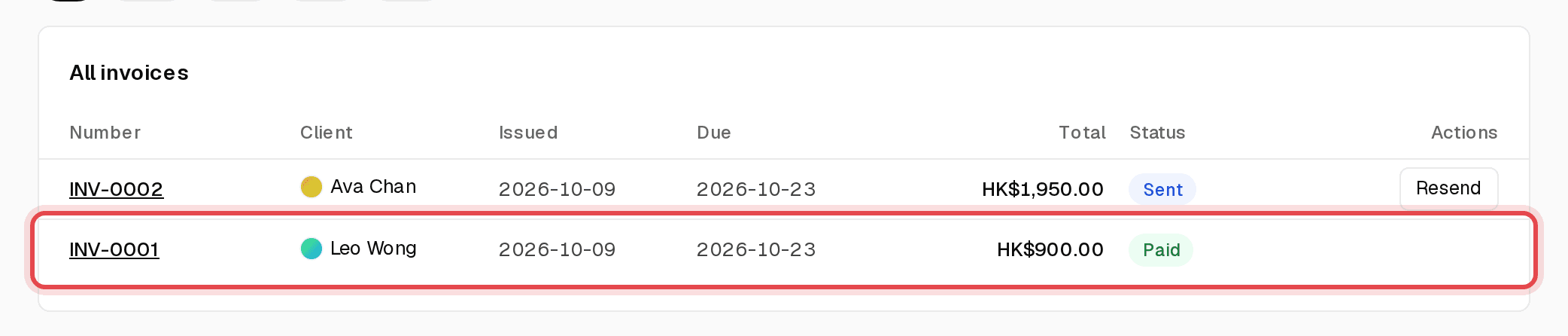
Invoices lists every invoice with its status. It turns Paid when your client pays by card, or when you record a cash or FPS payment on the invoice.
Tip: On Appty Basic, tick “Automatically chase unpaid invoices” under Automation & wording to remind clients after 3, 7 and 14 days.