Charge a client
Pay now, pay after the session or bill later. Send a pay link, or mark cash and FPS as paid.
Step 1: Choose when they pay
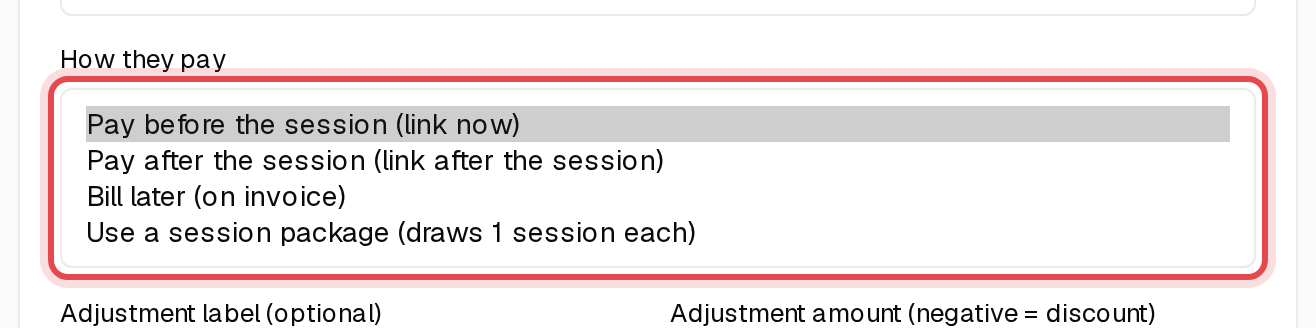
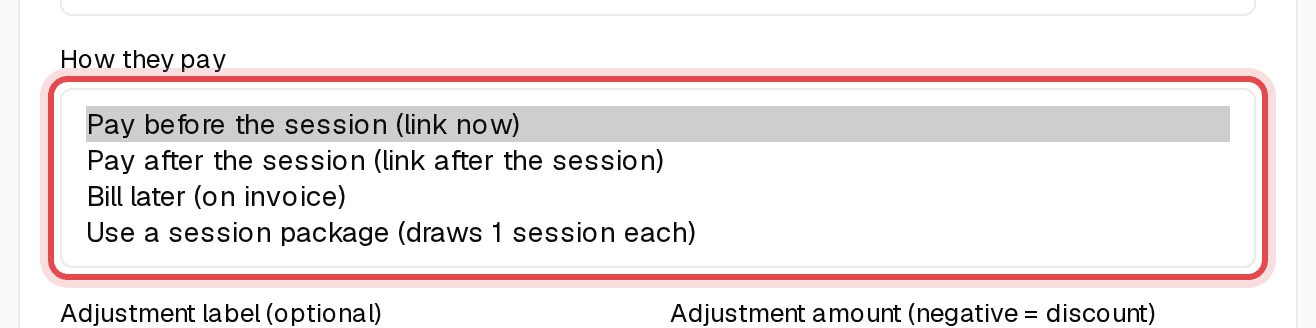
When you book, How they pay sets the timing: Pay before the session sends a link now, Pay after the session sends it after, and Bill later (on invoice) saves it for an invoice.
Tip: Bill later sessions are invoiced on your billing cycle, or whenever you click Bill now.
Step 2: Open the booking
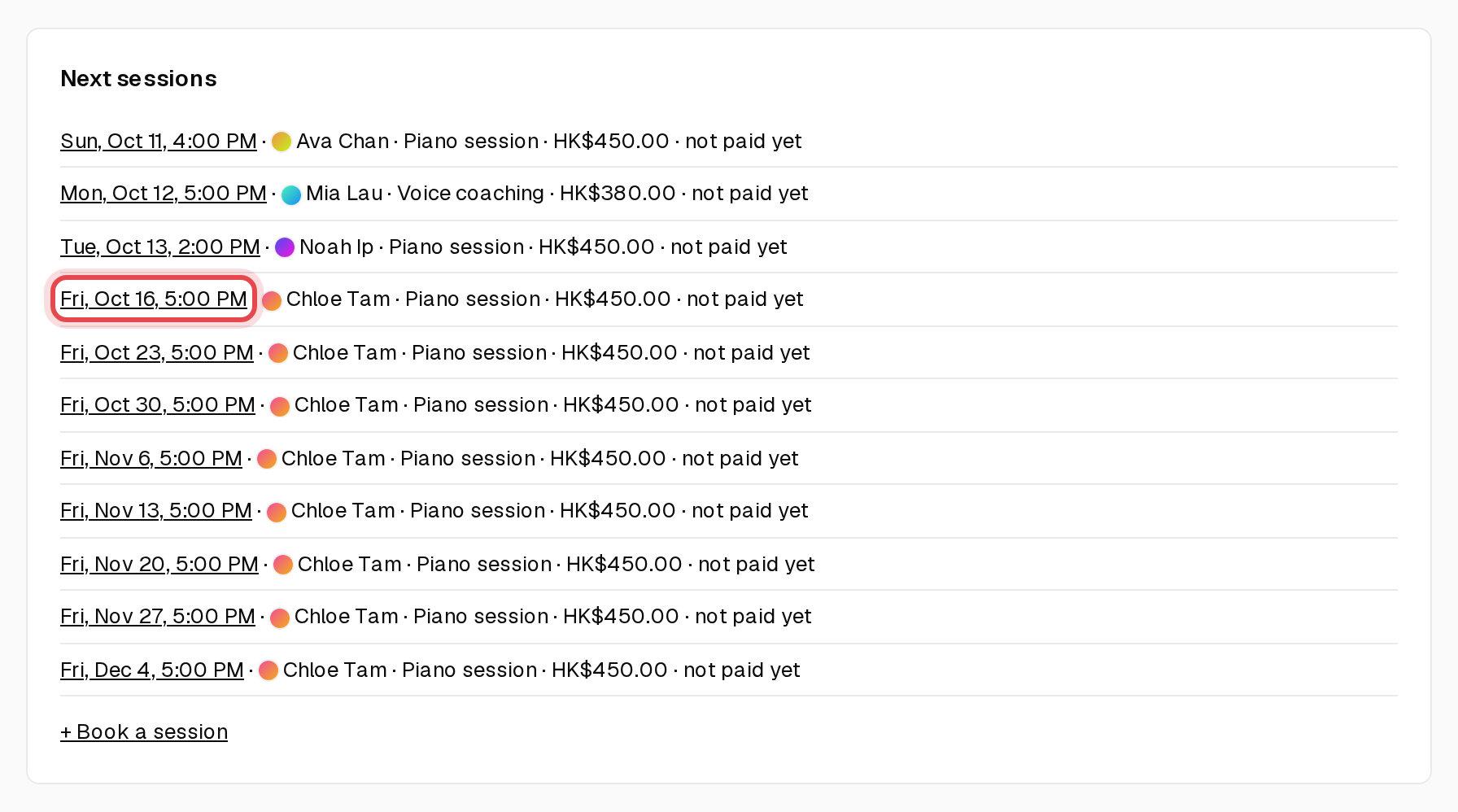
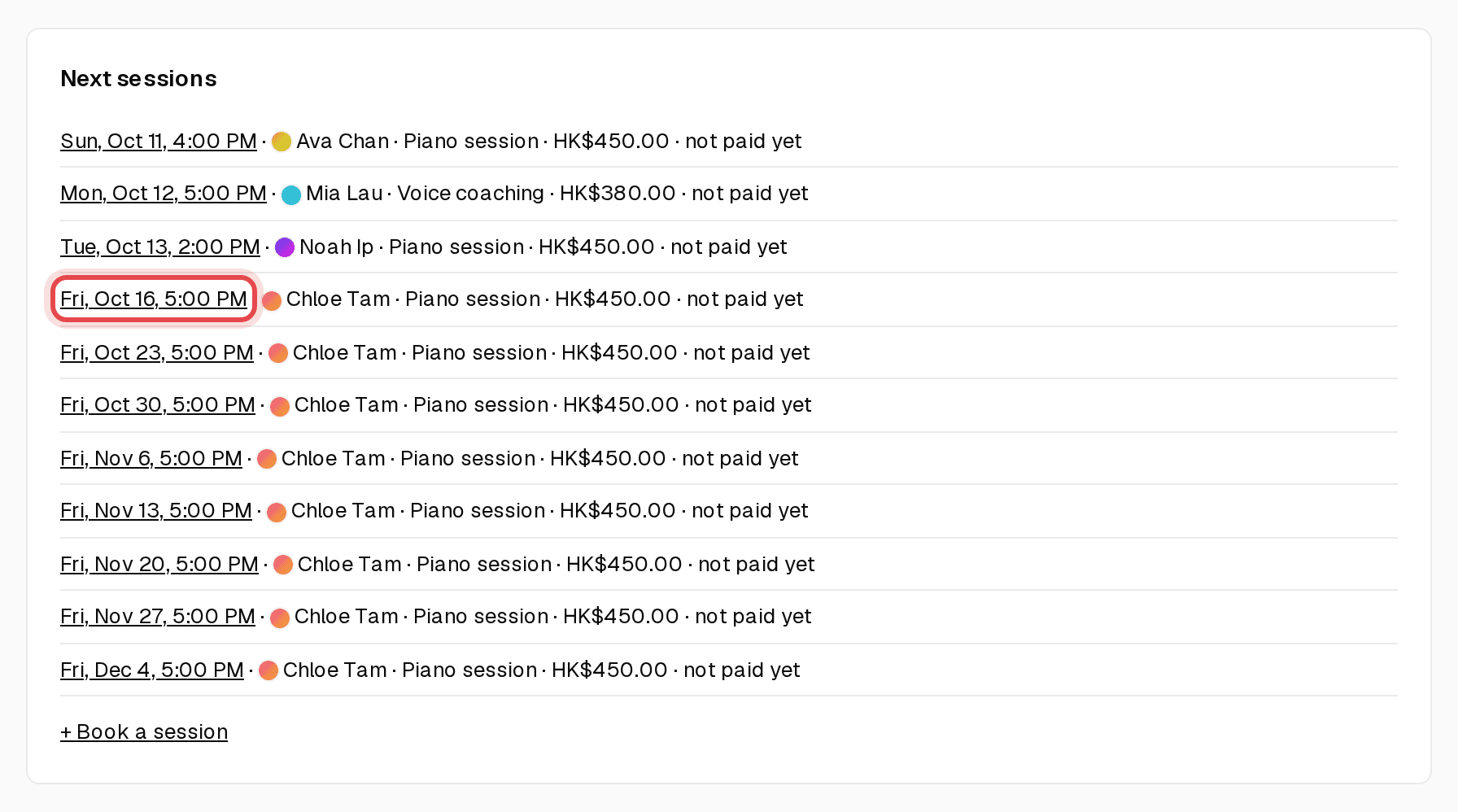
On Overview, click the date of the session under Next sessions.
Step 3: Send the pay link
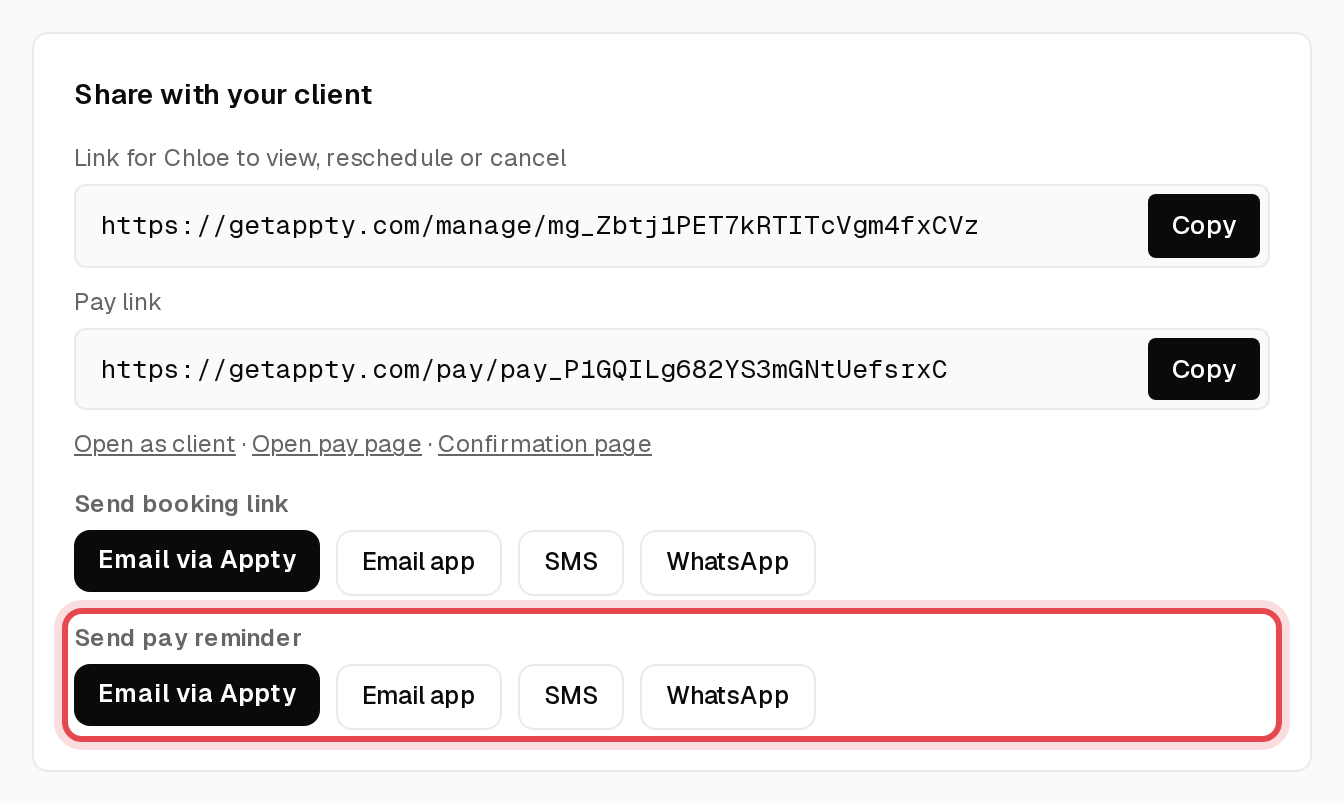
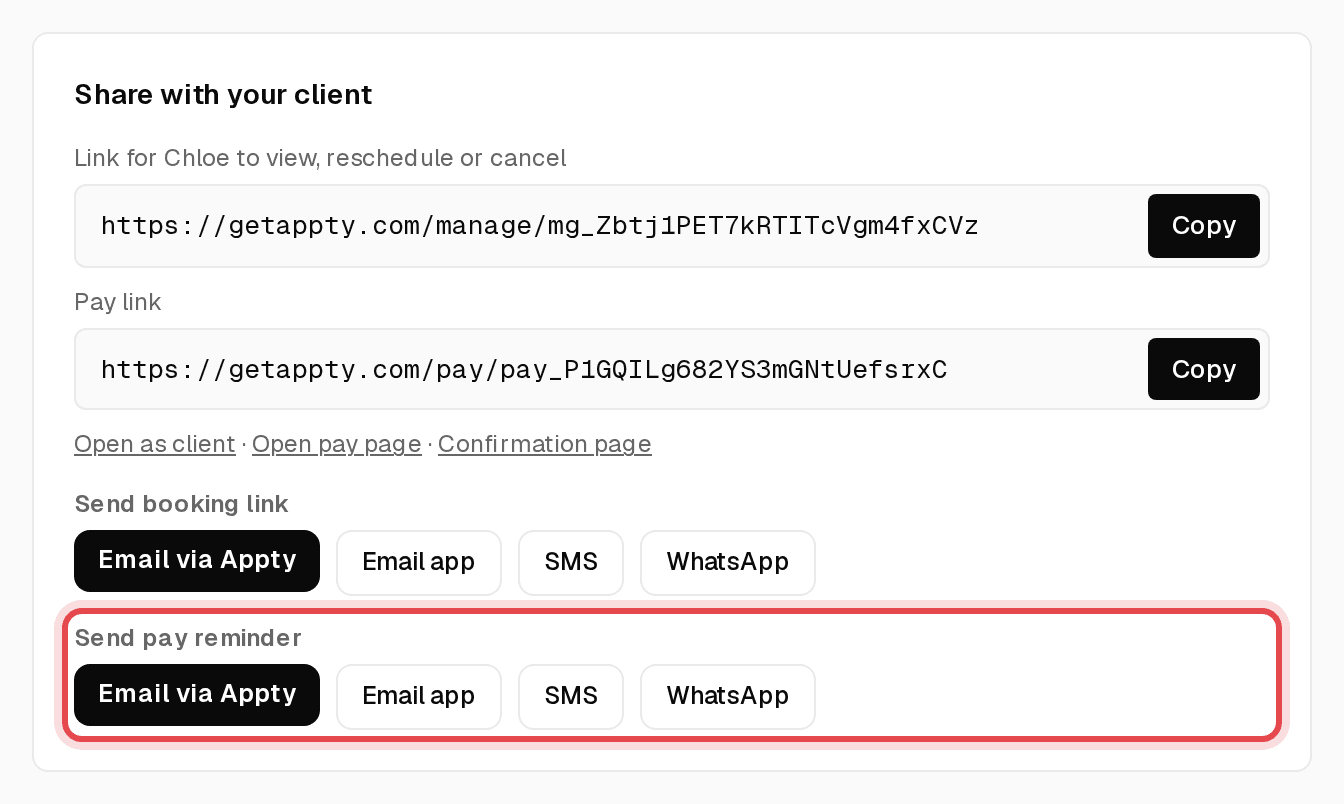
Under Share with your client, copy the Pay link, or use Send pay reminder to send it by email, SMS or WhatsApp.
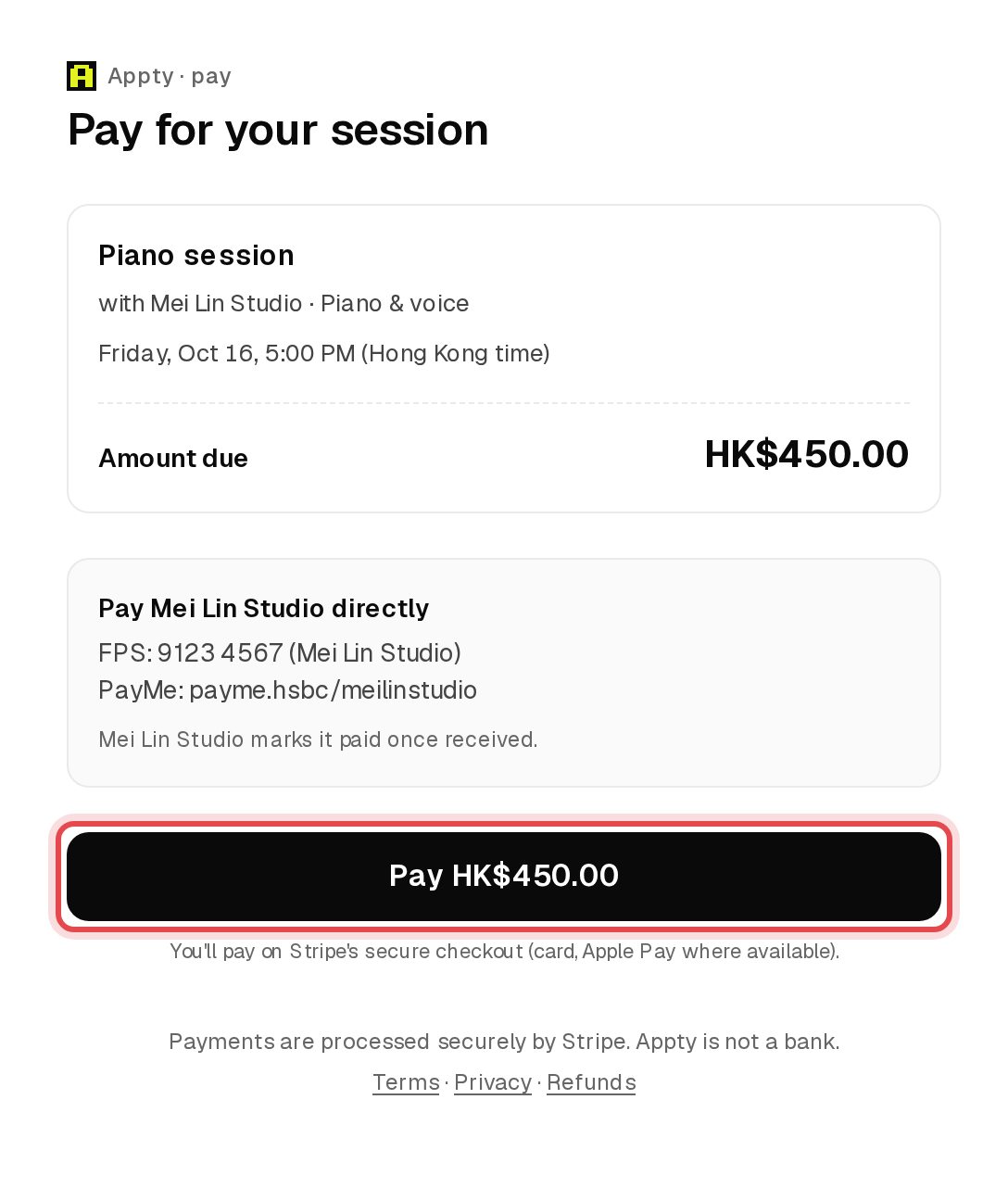
Step 4: Your client pays by card
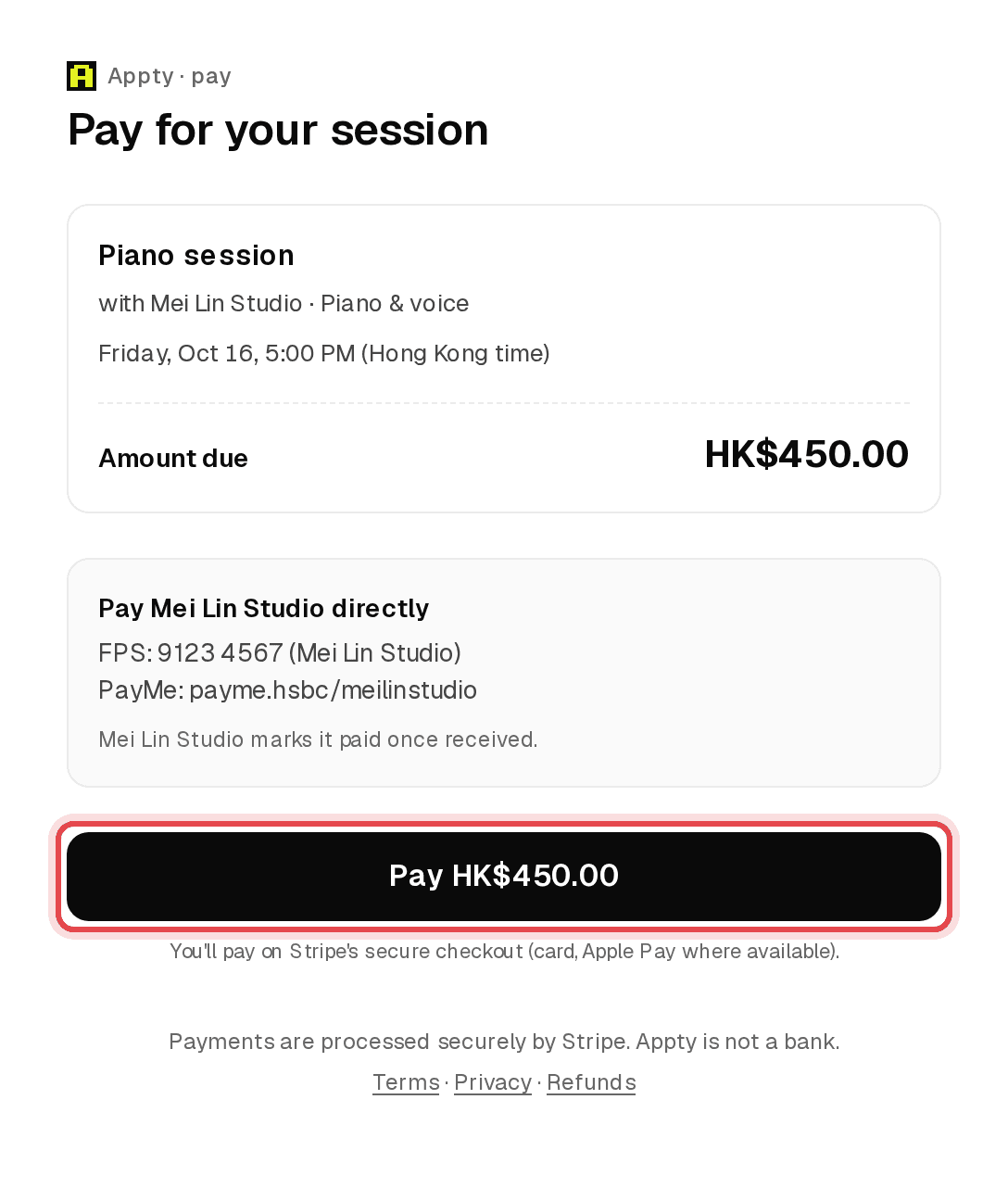
The link opens a simple pay page. Clients can also see your pay-directly instructions there if you accept them.
Step 5: Paid in cash or FPS?
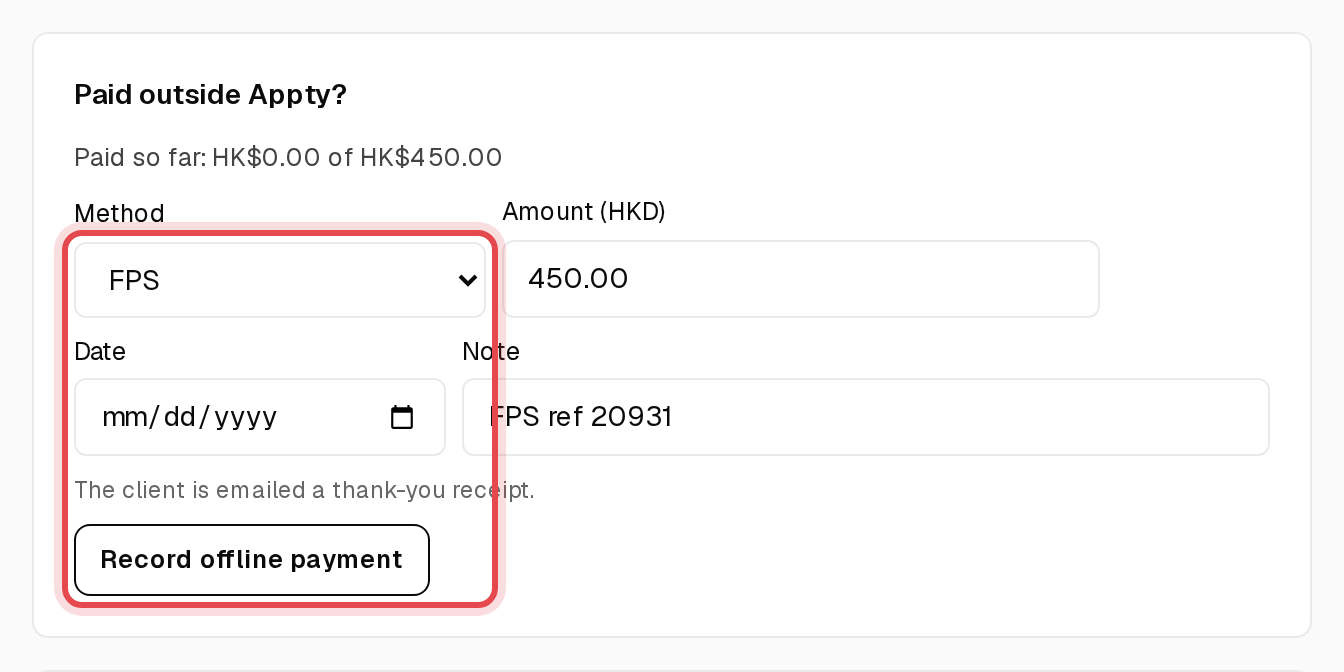
On the booking, under Paid outside Appty?, choose the Method and amount, then click Record offline payment.
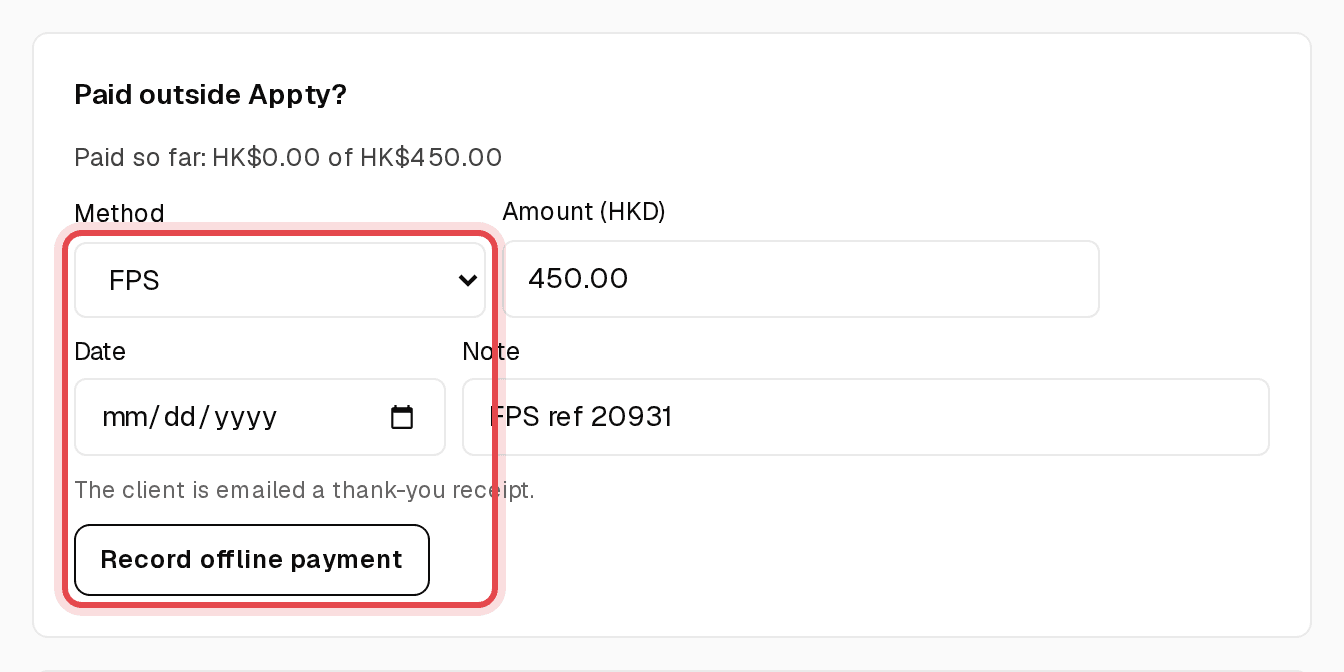
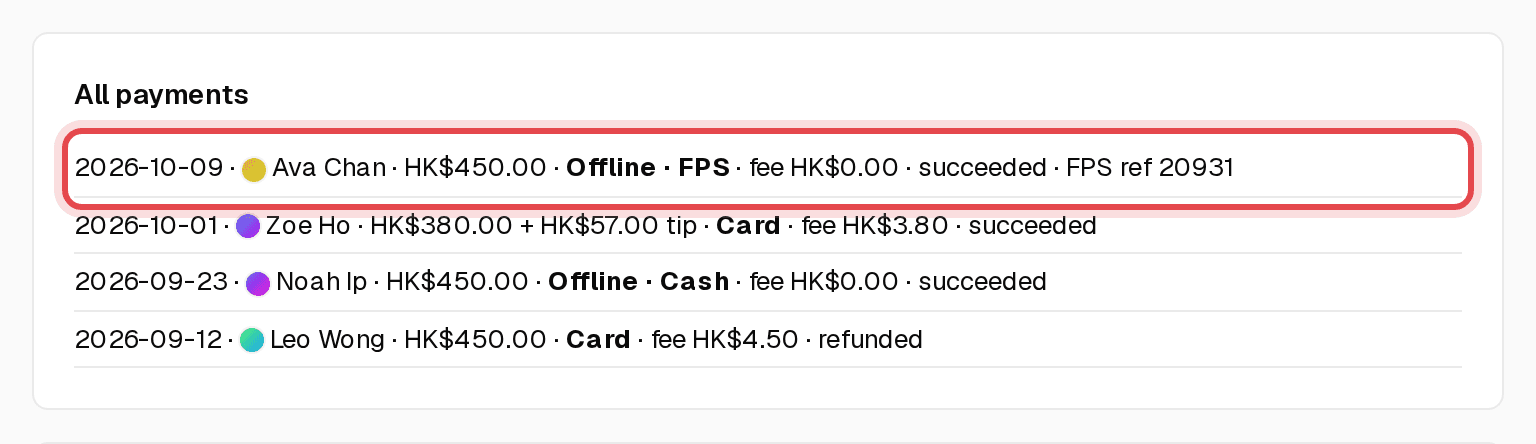
Tip: Offline payments carry no Appty fee, and your client gets a thank-you receipt by email.
Step 6: See it marked paid
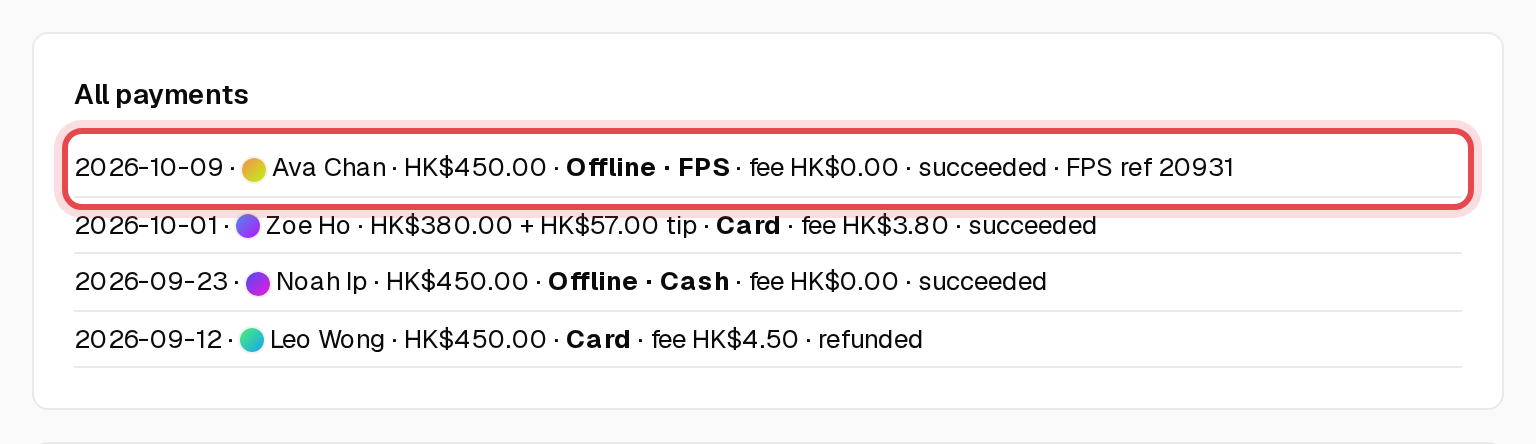
Every payment, card or offline, is listed on Payments. Overview also shows the session as paid.