Set your billing cycle and use Bill now
Have Bill later sessions invoiced weekly, every 2 weeks or monthly, or bill a client right away.
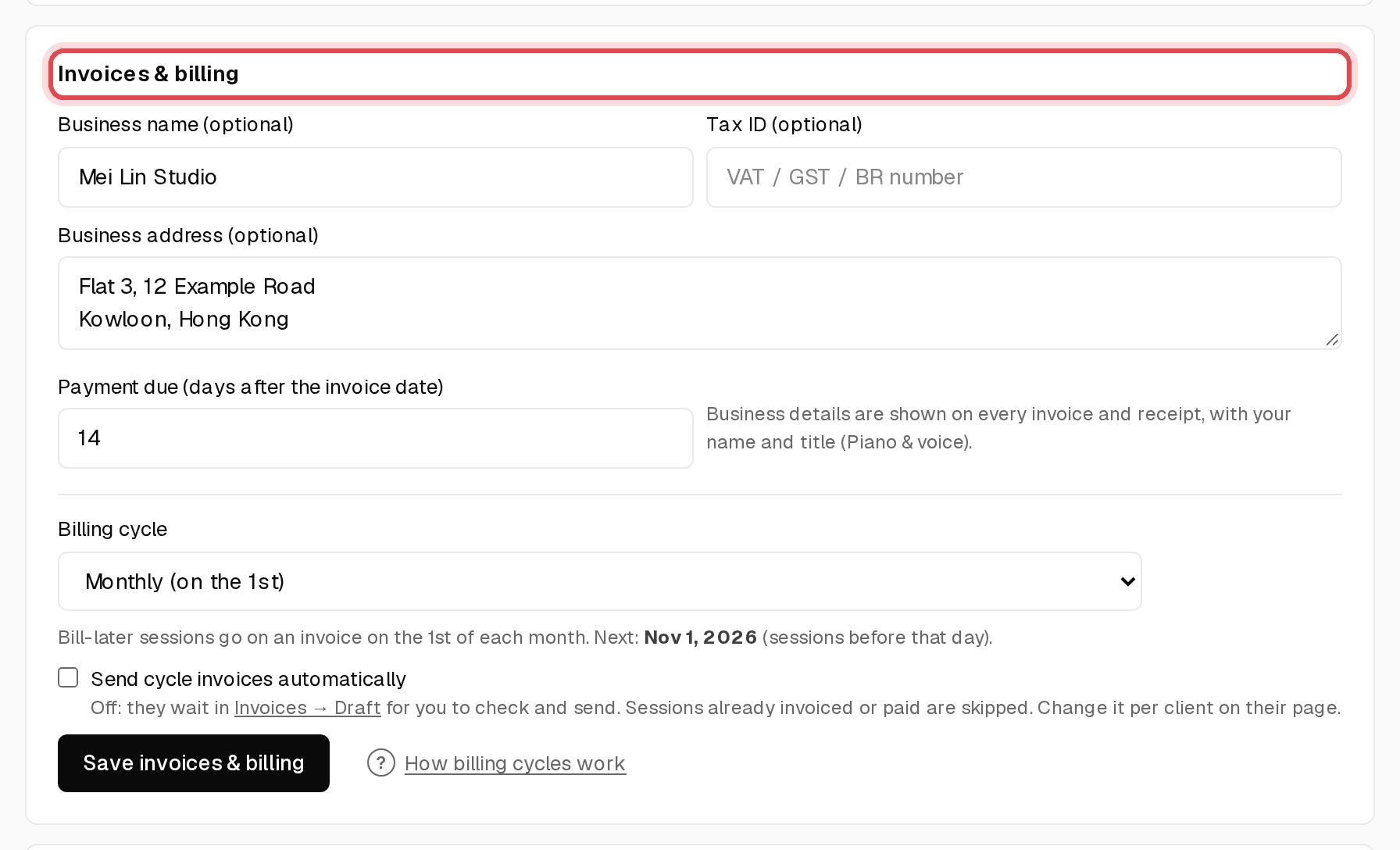
Step 1: Open Invoices & billing
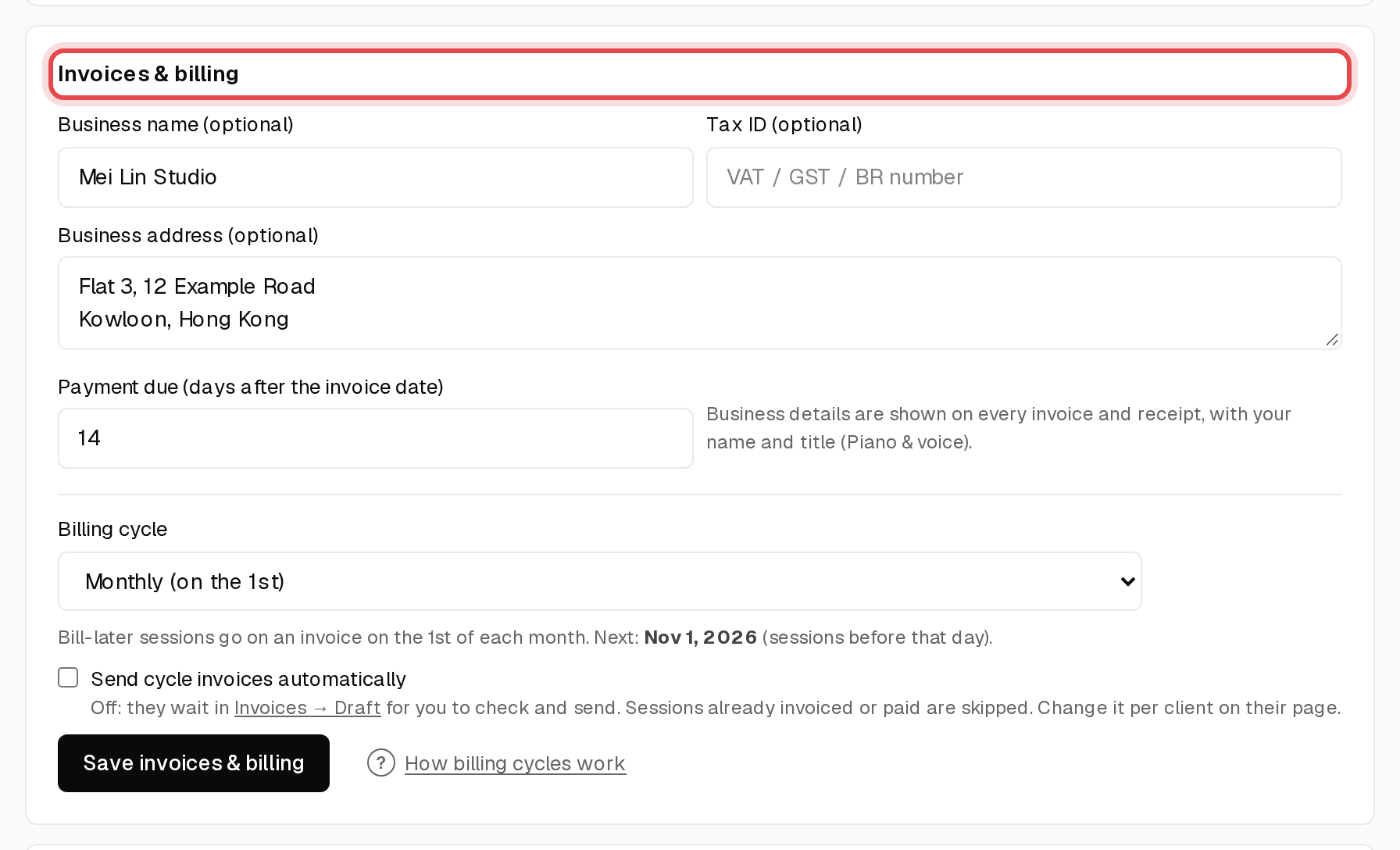
On Overview, scroll to Profile settings and find Invoices & billing.
Step 2: Pick a billing cycle
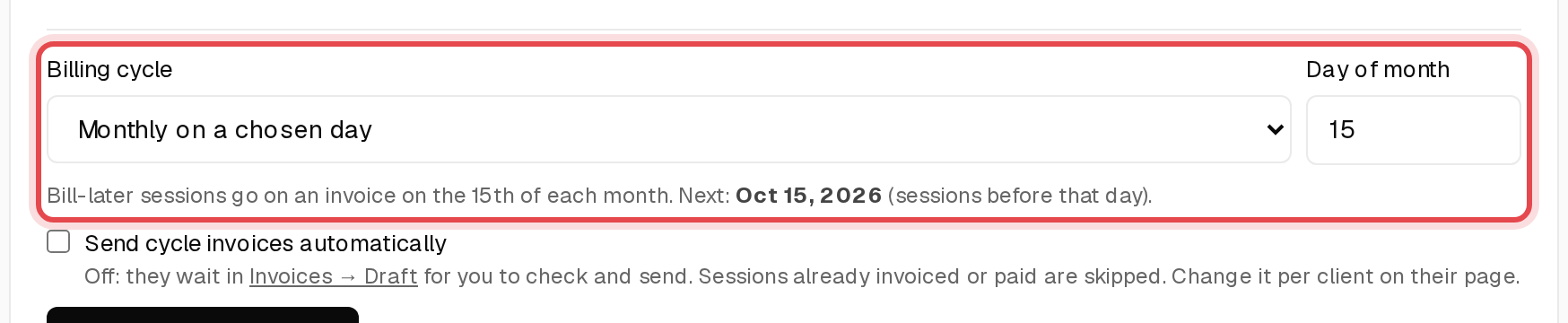
Choose Weekly, Every 2 weeks, Monthly (on the 1st) or Monthly on a chosen day. The next billing date is shown underneath.
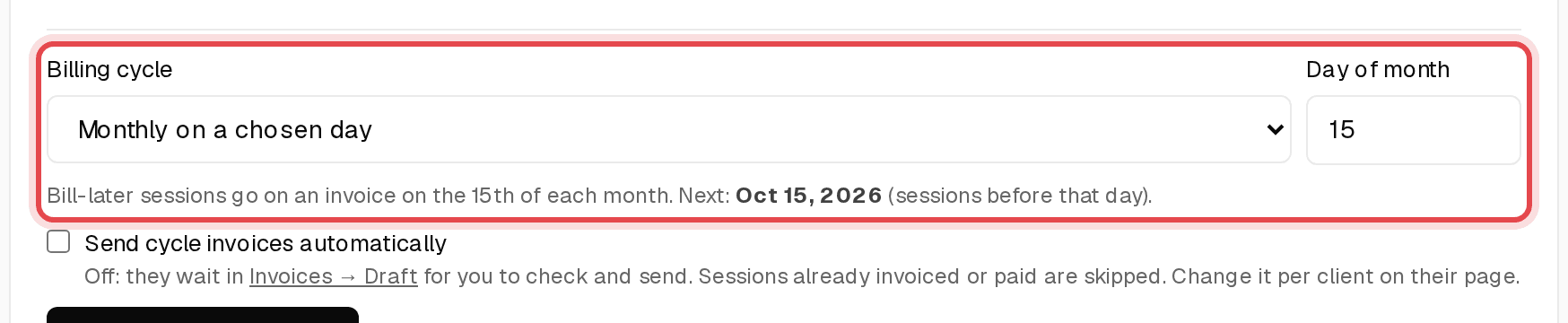
Tip: Only sessions booked as Bill later (on invoice) go on cycle invoices.
Step 3: Send automatically, or check first
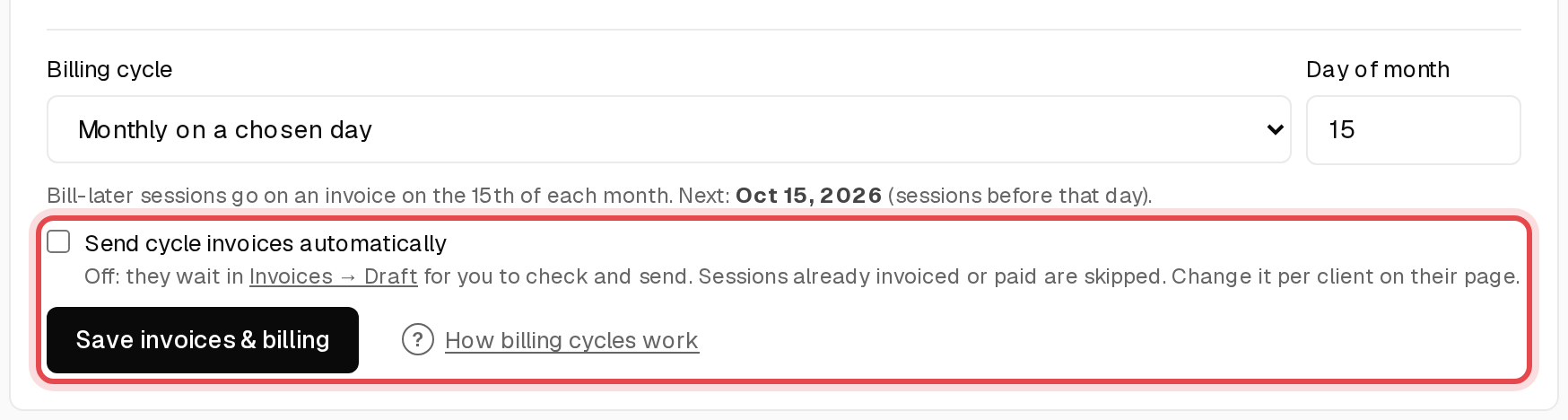
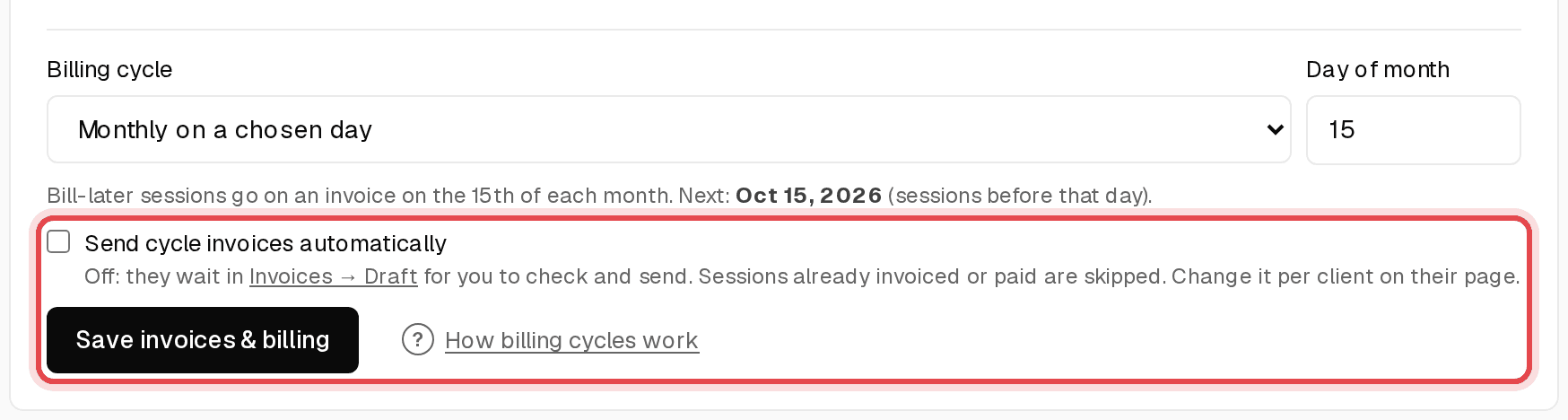
Tick Send cycle invoices automatically to send them on the day. Leave it off to find them under Invoices → Draft. Click Save invoices & billing.
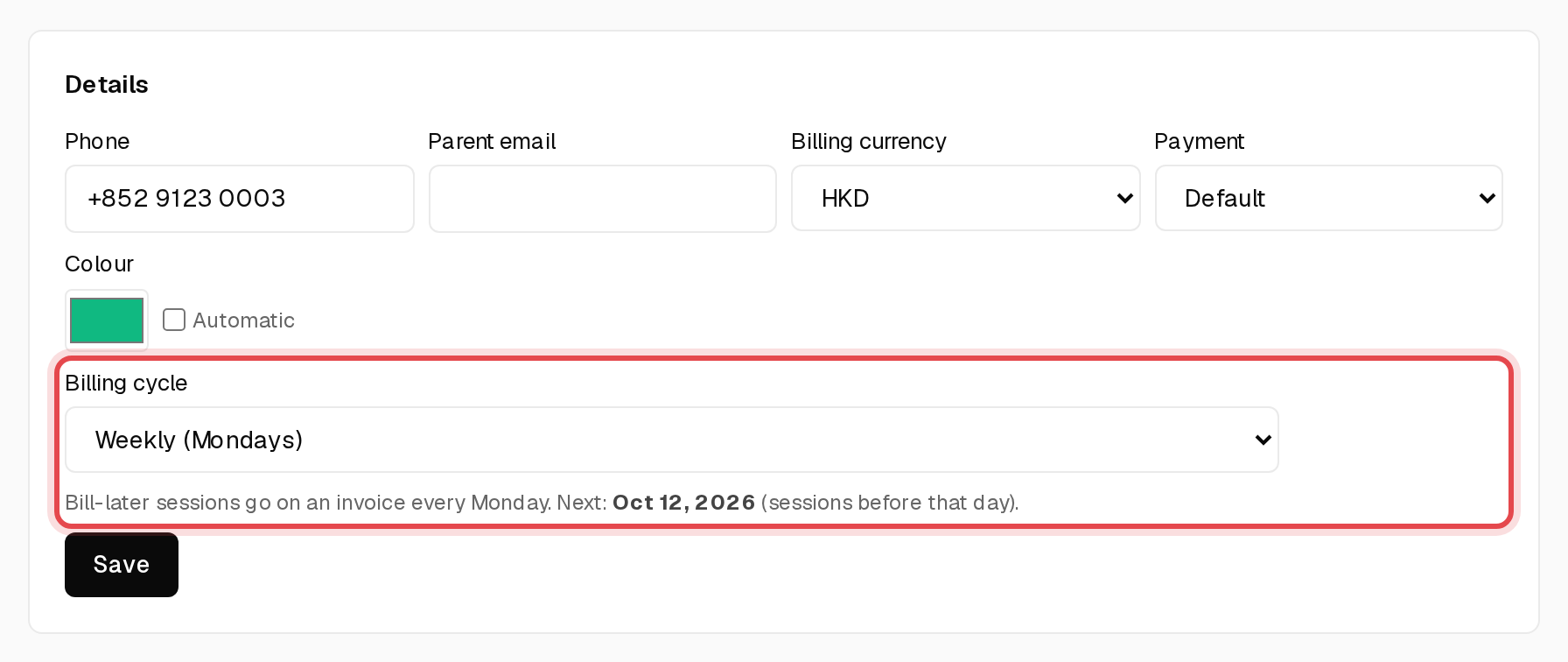
Step 4: A different cycle for one client
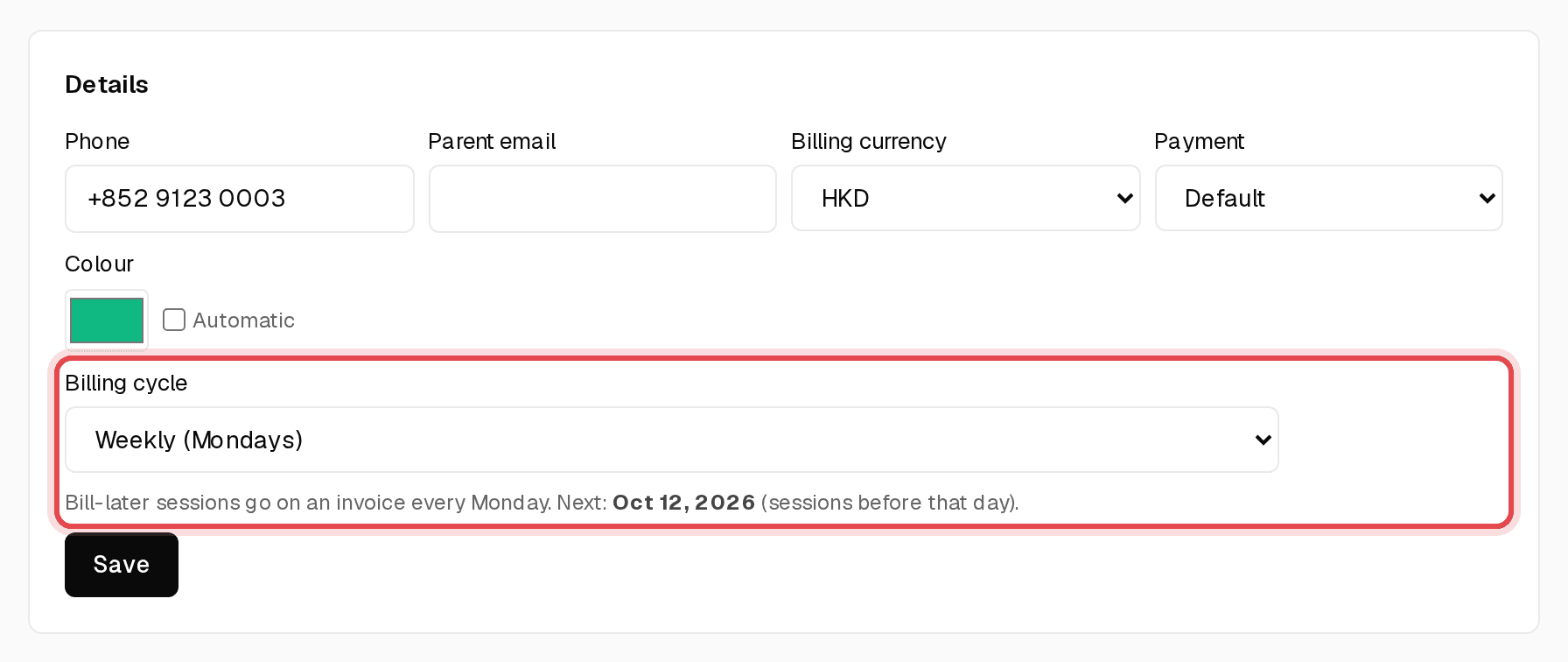
On a client's page, under Details, change Billing cycle from Use my default and click Save.
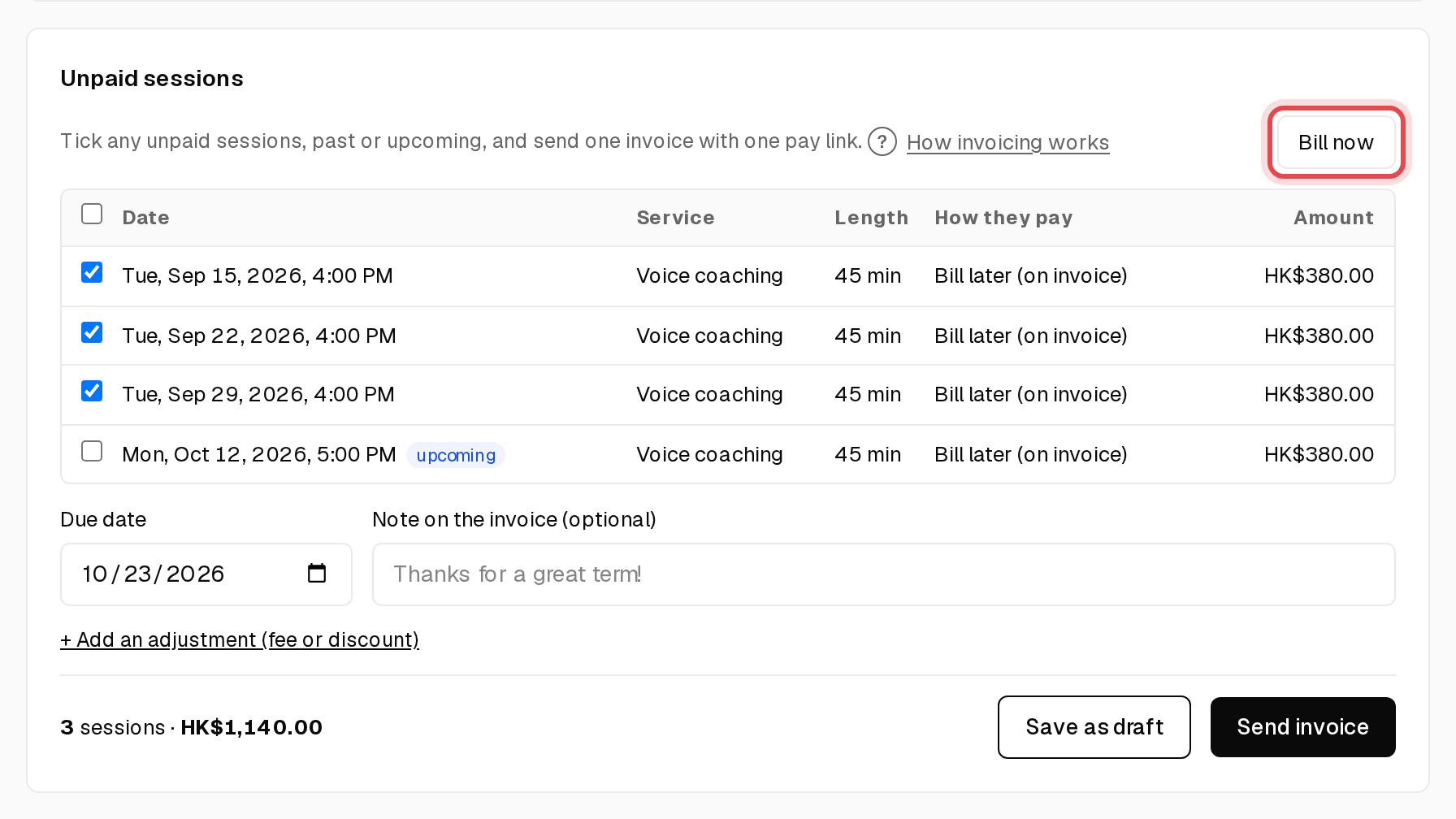
Step 5: Bill now
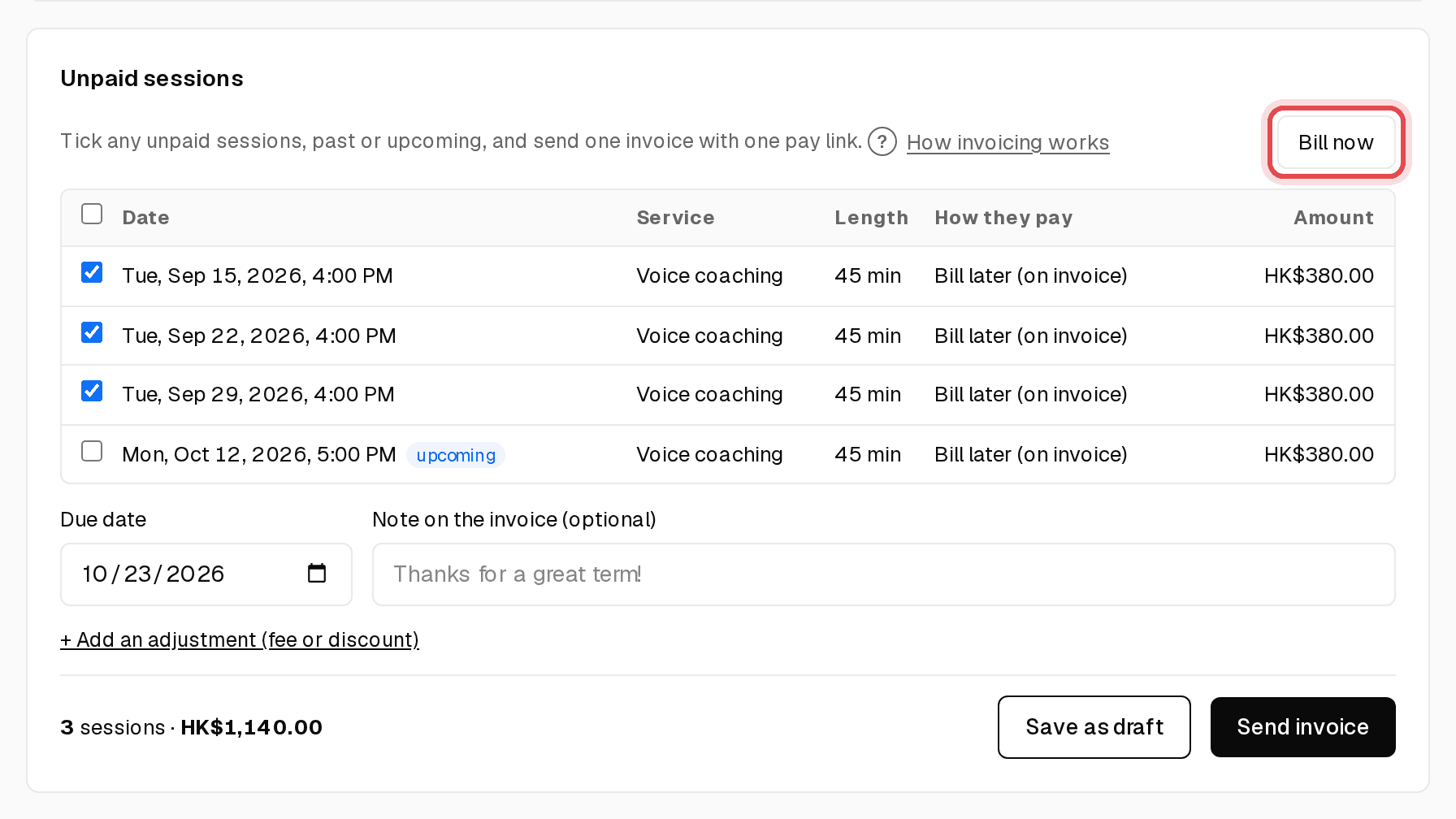
Need to bill before the cycle day? On the client's page, click Bill now. Every past unpaid session goes onto a draft invoice.
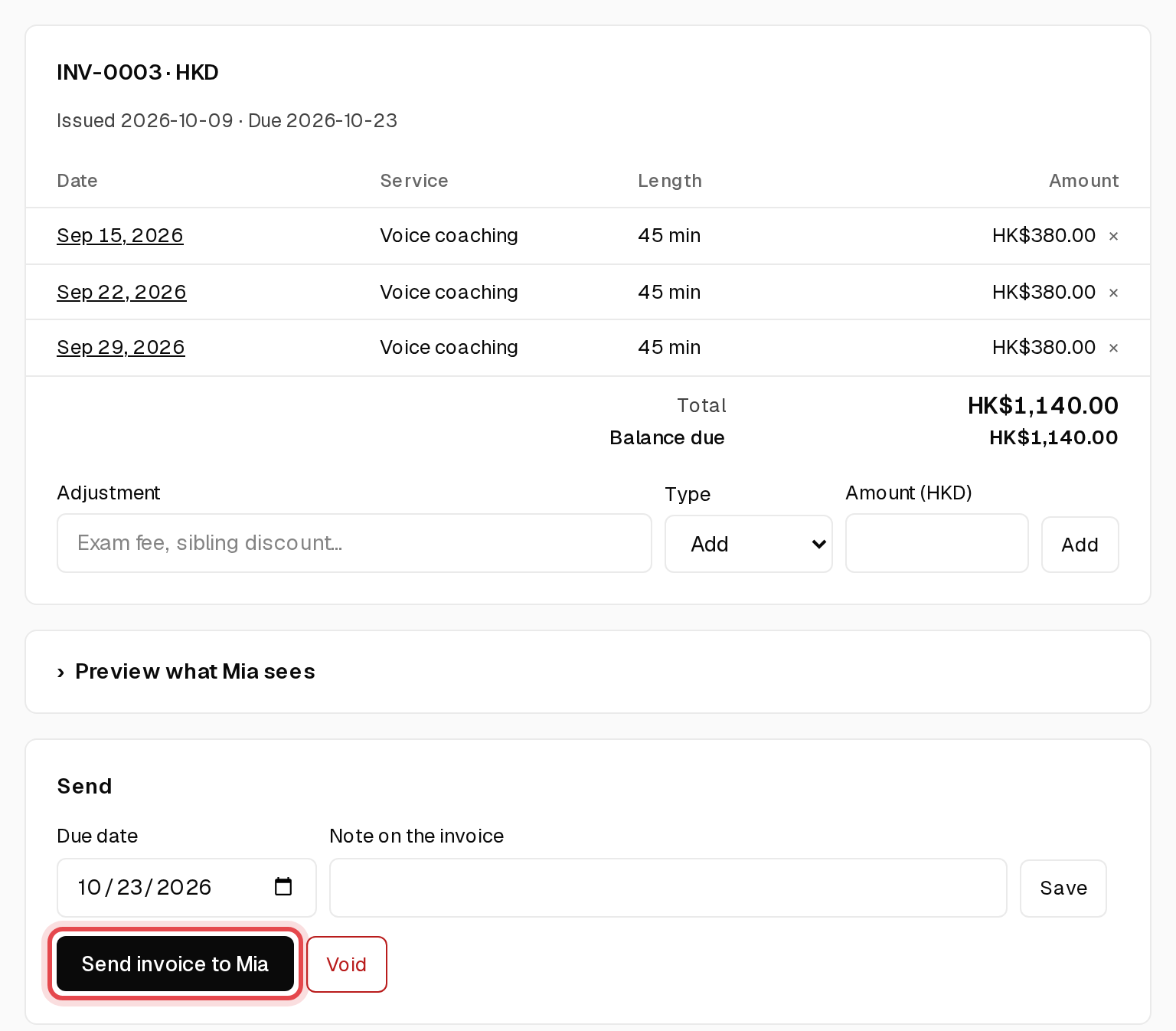
Step 6: Check the draft and send
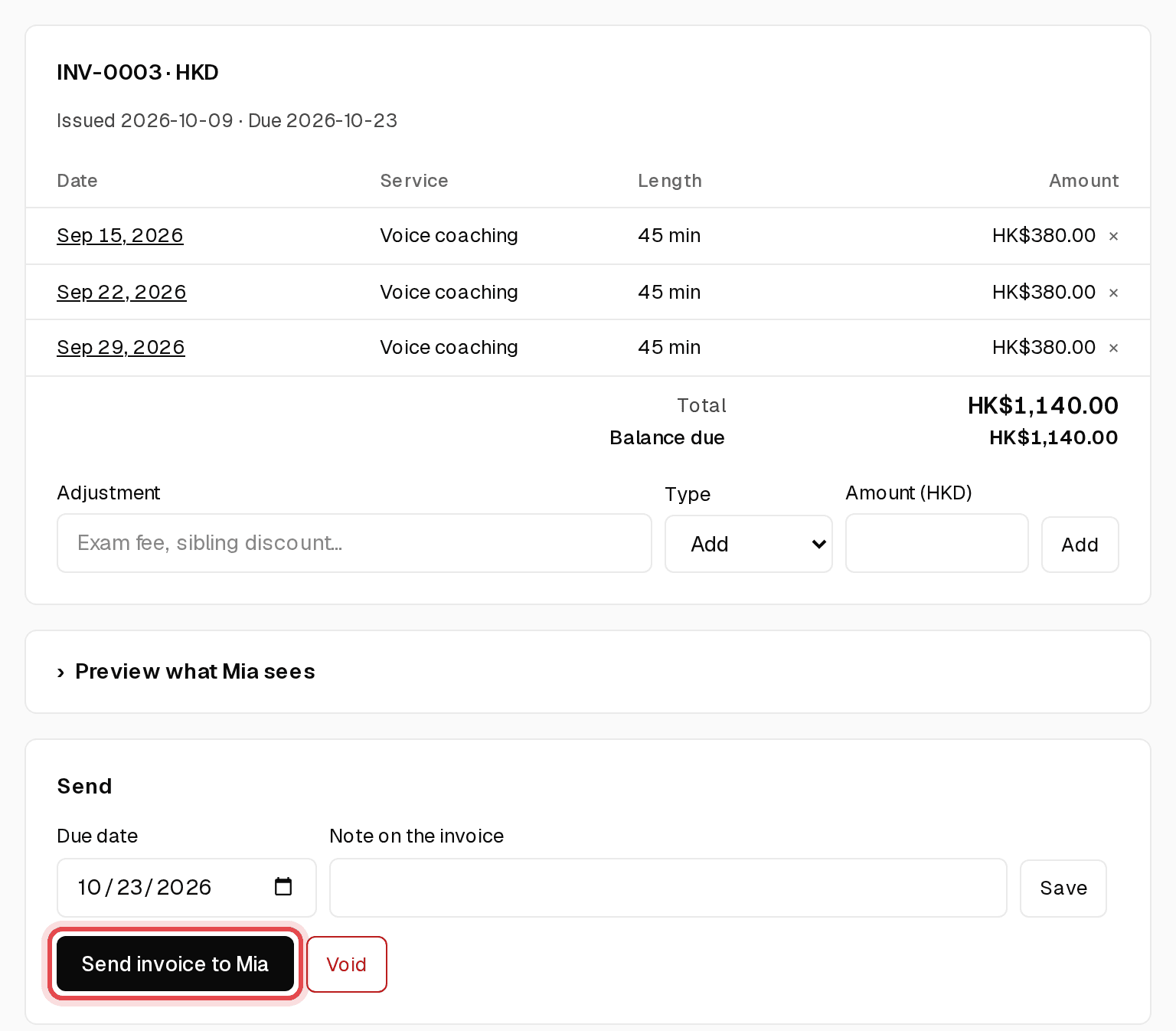
Look over the sessions, add any adjustment, then click Send invoice to your client.