Import clients and past sessions
Bring clients and past sessions from Calendly, Acuity, a spreadsheet or your calendar, then invoice them.
Step 1: Open Import
Go to Clients and click Import.

Step 2: Paste or upload your clients
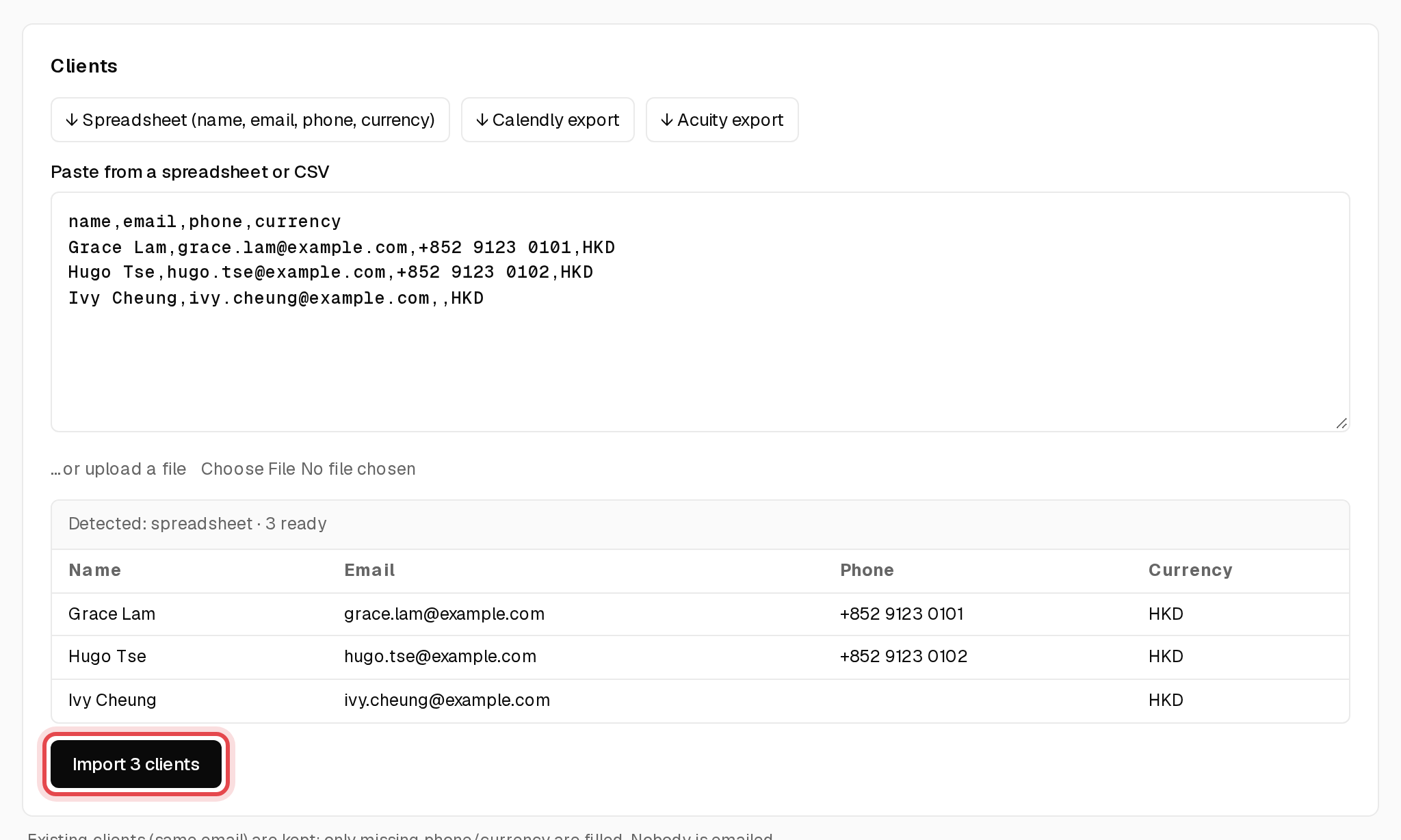
Paste rows from a spreadsheet or upload a CSV. Check the preview, then click the Import button under it.
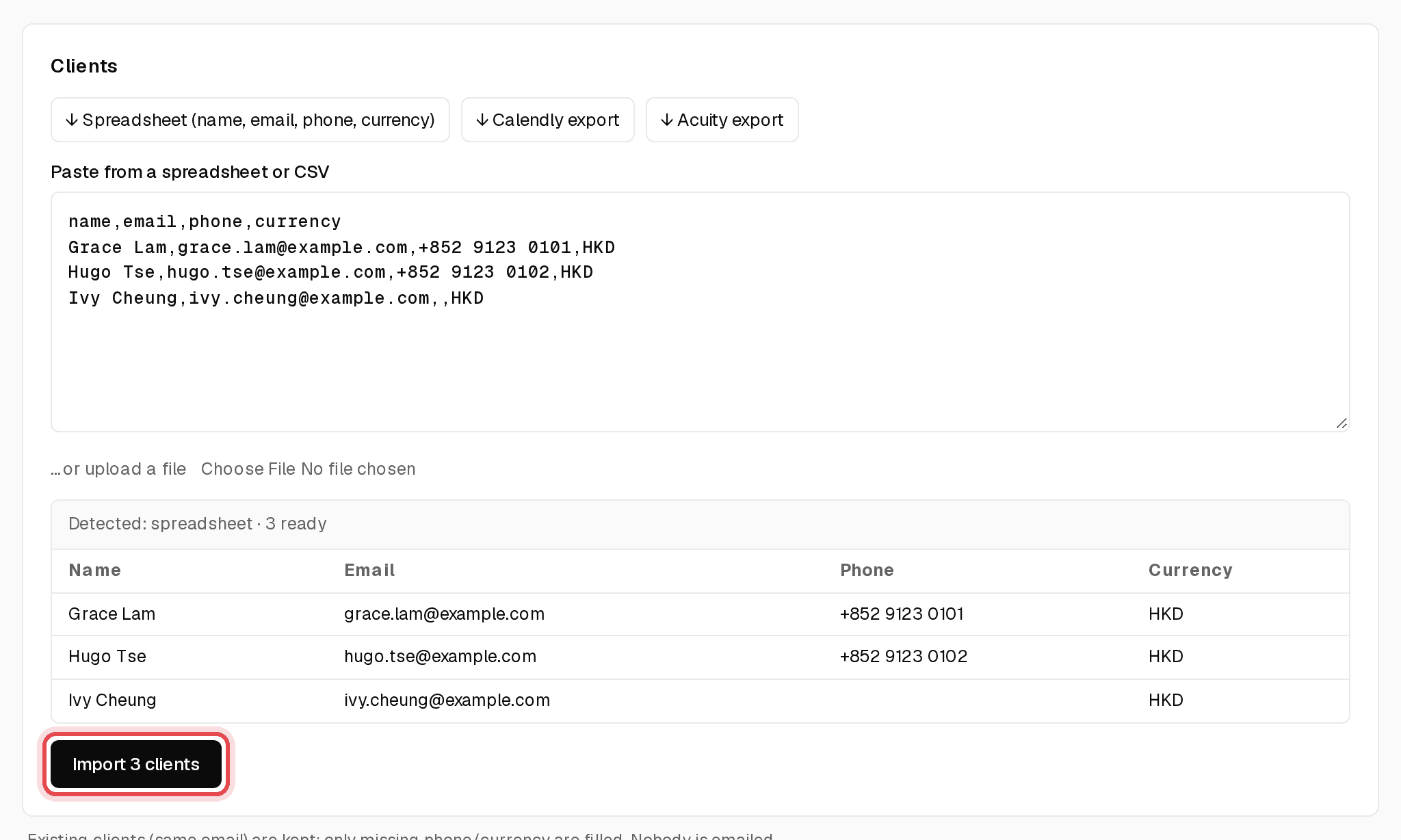
Tip: Nobody is emailed. Clients with an email already in Appty are kept as they are.
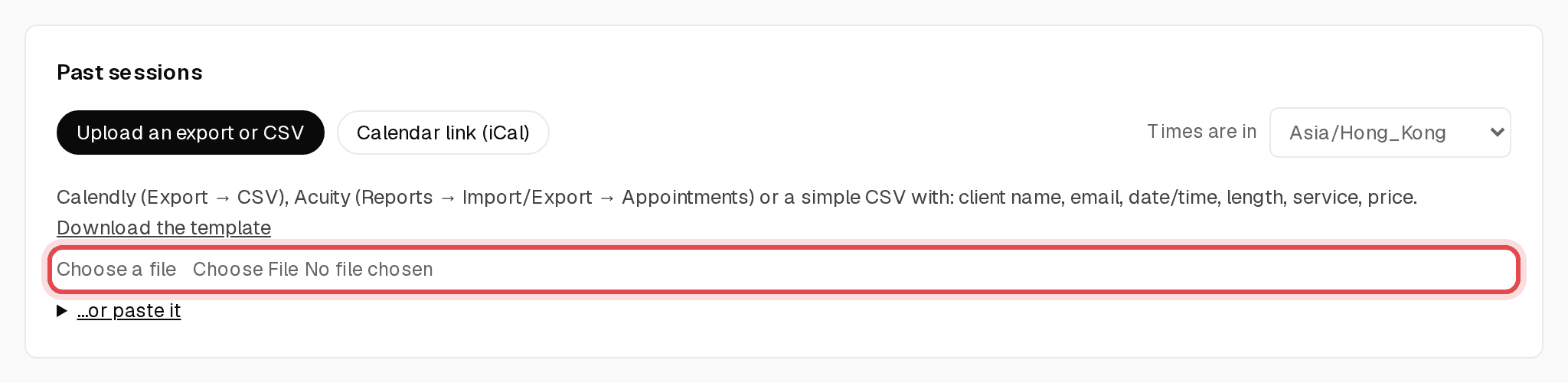
Step 3: Upload past sessions
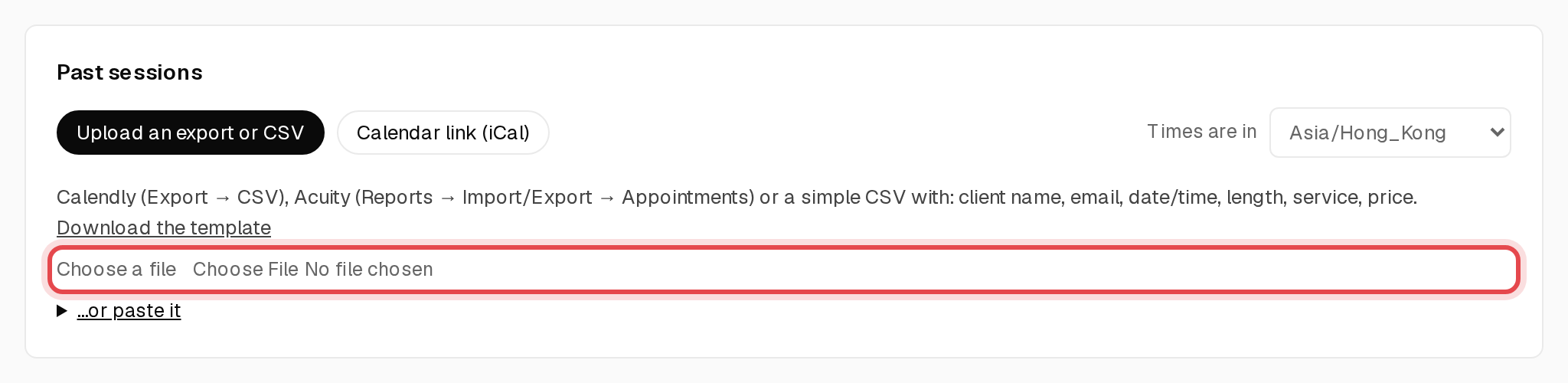
Under Past sessions, choose a Calendly or Acuity export, or a simple CSV. You can also read them from a calendar link.
Step 4: Check the rows and import
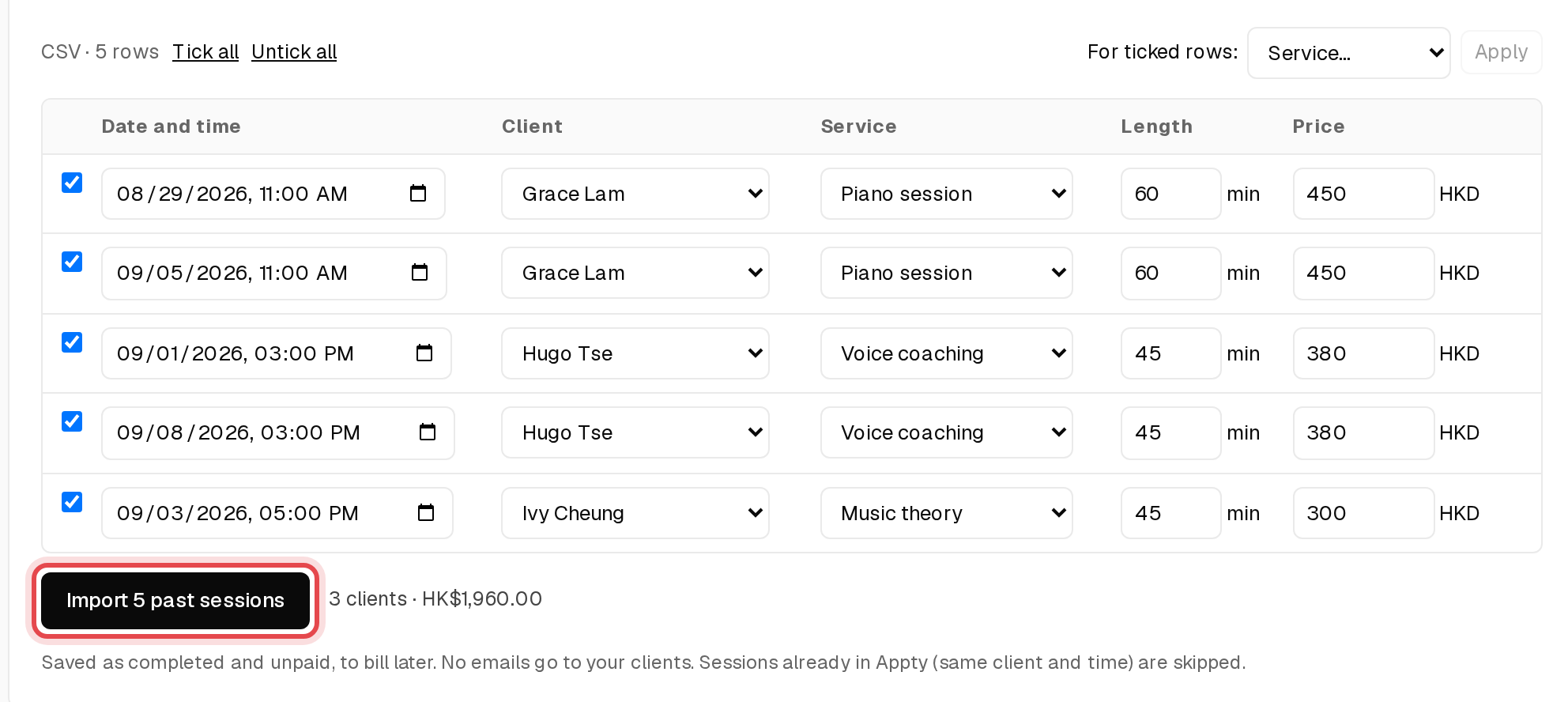
Match each row to a client and service, fix any price, untick anything you don't want, then click Import past sessions.
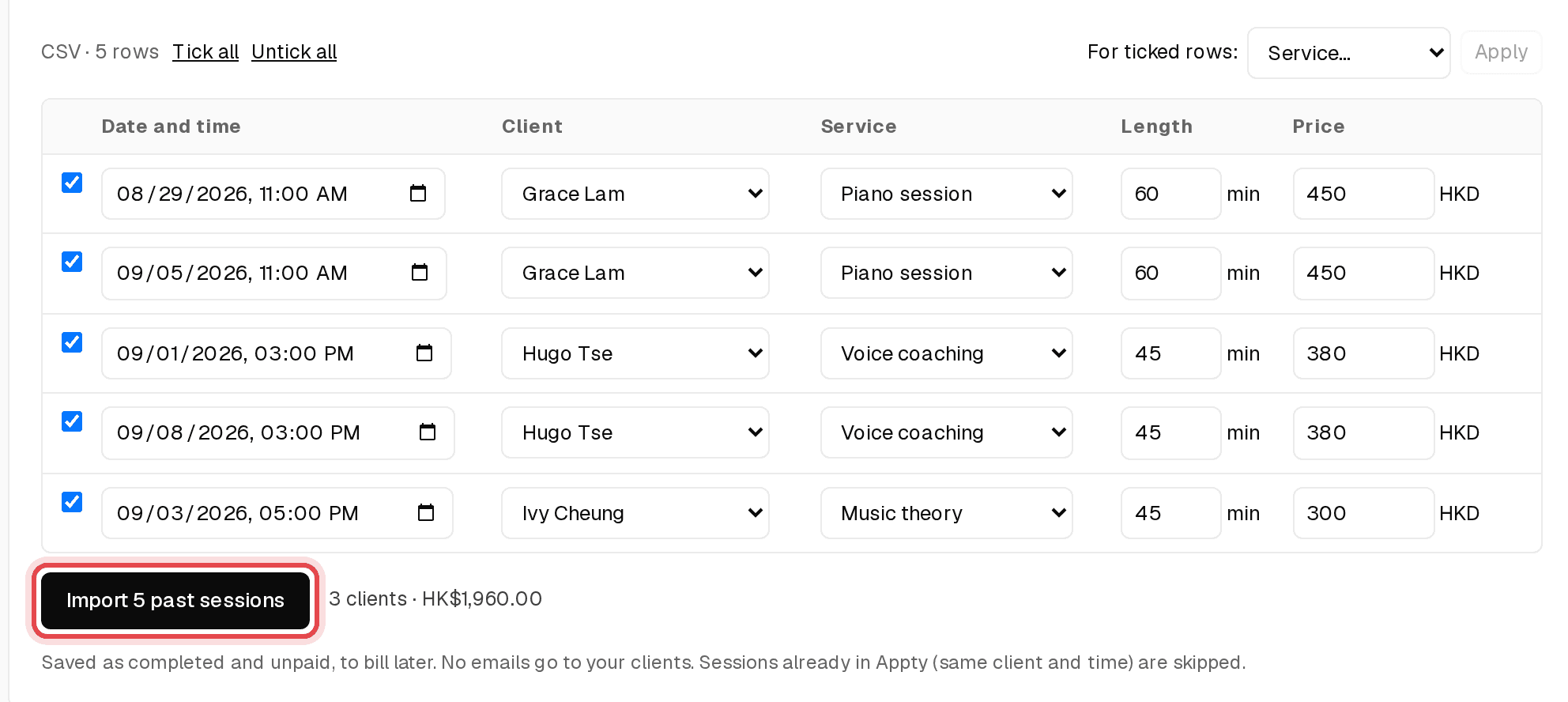
Tip: Rows already in Appty (same client and time) are skipped, so it's safe to import twice.
Step 5: Create invoices for these
Imported sessions are saved as completed and unpaid. Click Create invoices for these to draft one invoice per client.

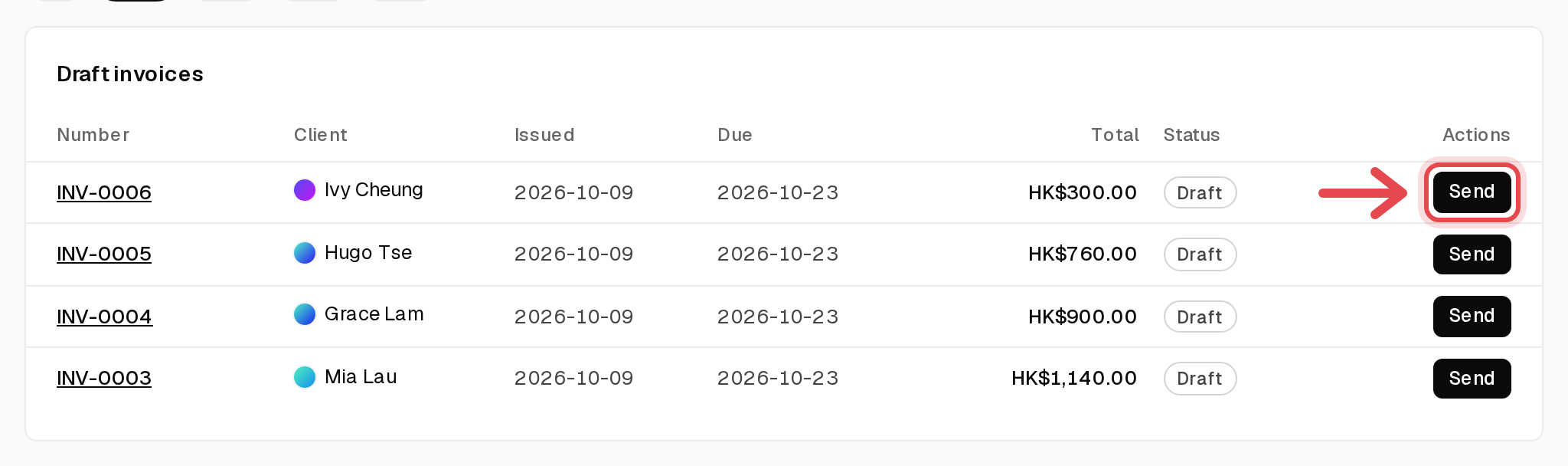
Step 6: Send the drafts
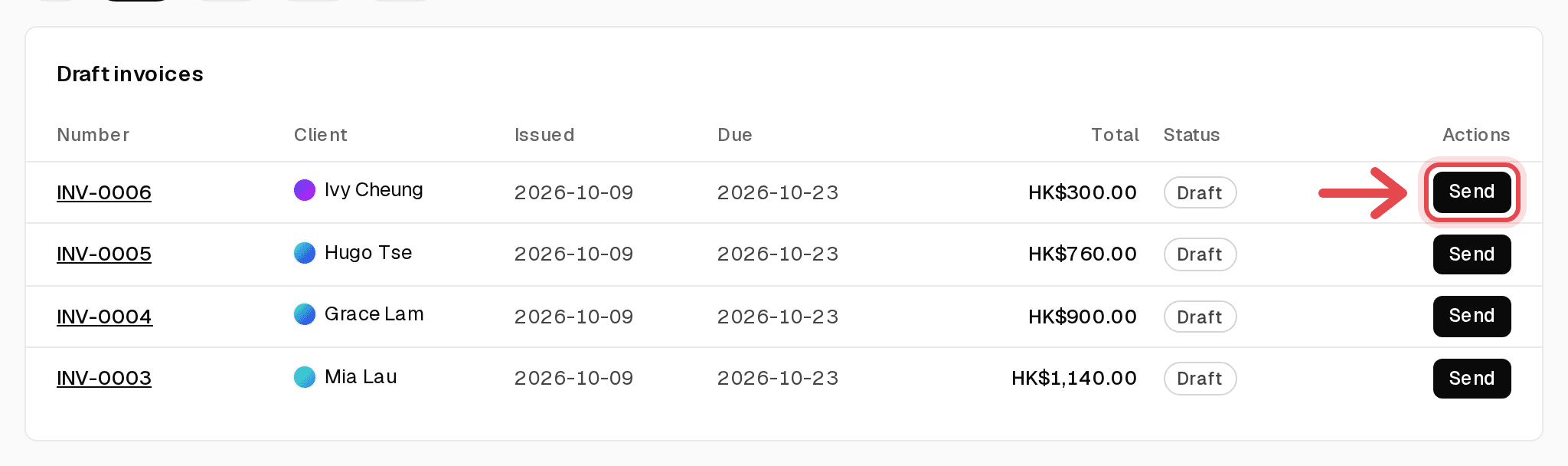
Open Invoices → Draft and click Send on each one, or open it first to check it.