Book a session for a client
Book someone in yourself: one session or a weekly series, from a saved service or a one-off.
Step 1: Click + Book
The + Book button is at the top of every dashboard page. It opens Book a session or series.

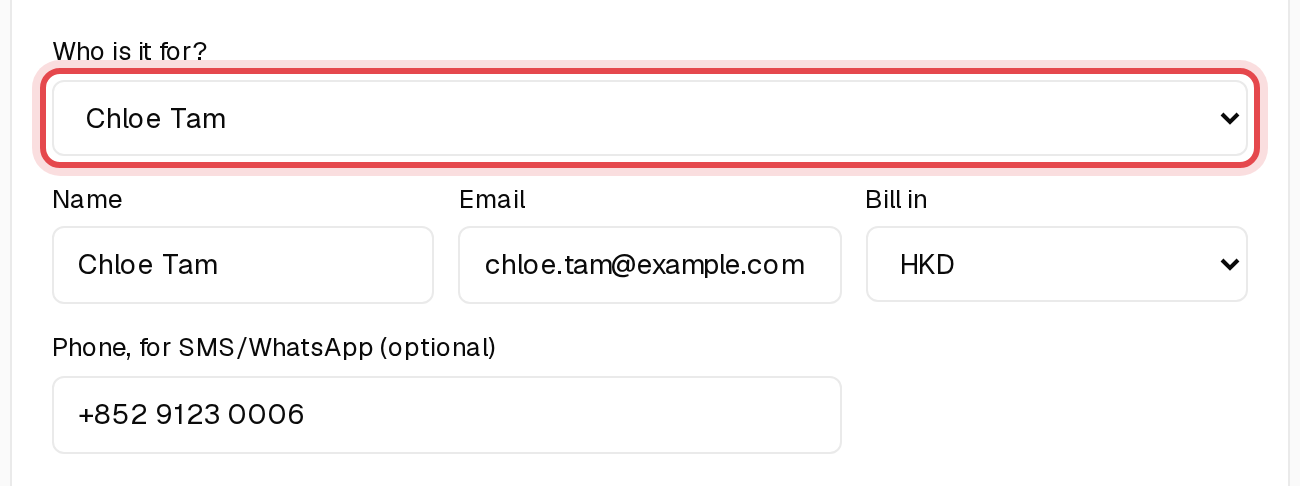
Step 2: Choose who it's for
Pick a client under Who is it for?, or choose + New client and type their name and email.
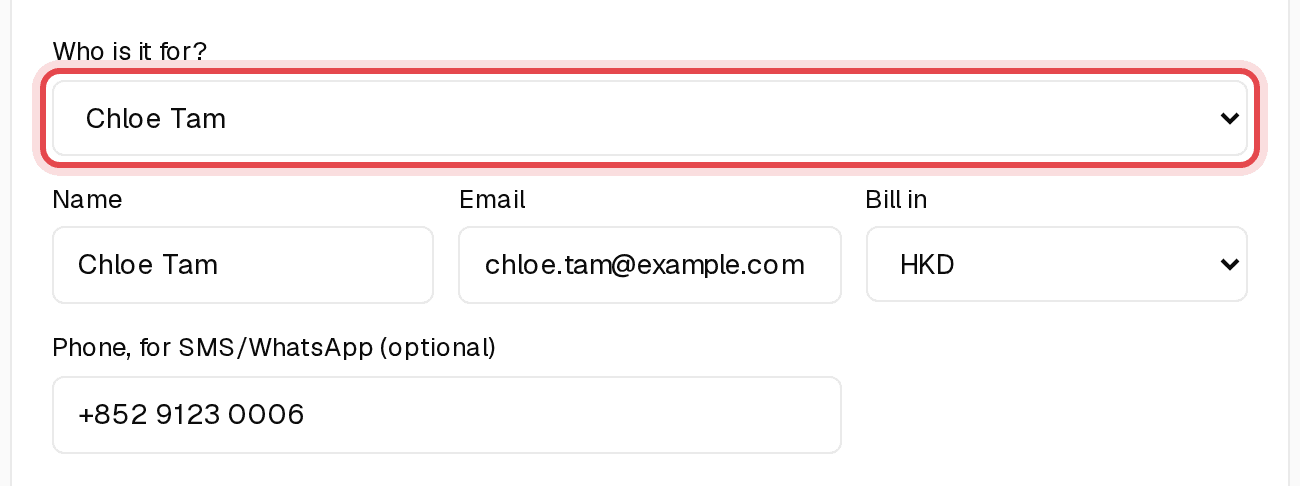
Tip: Add a phone number to send the booking by SMS or WhatsApp afterwards.
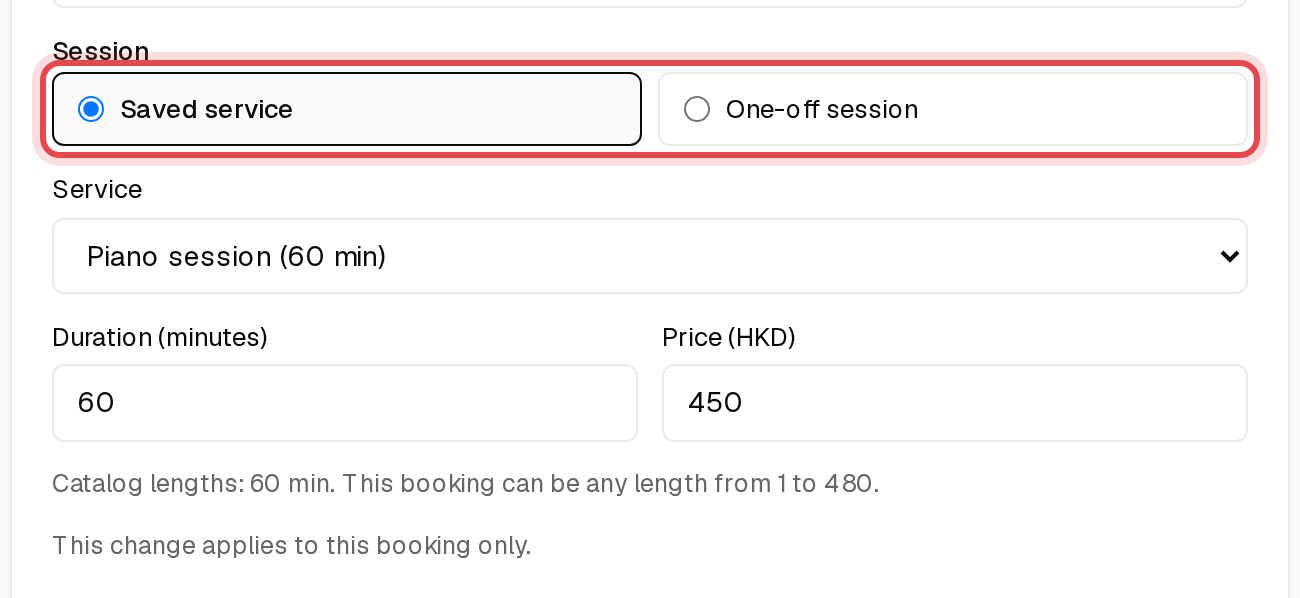
Step 3: Saved service or one-off session
Saved service fills in the length and price from your Services. One-off session lets you name and price something just this once.
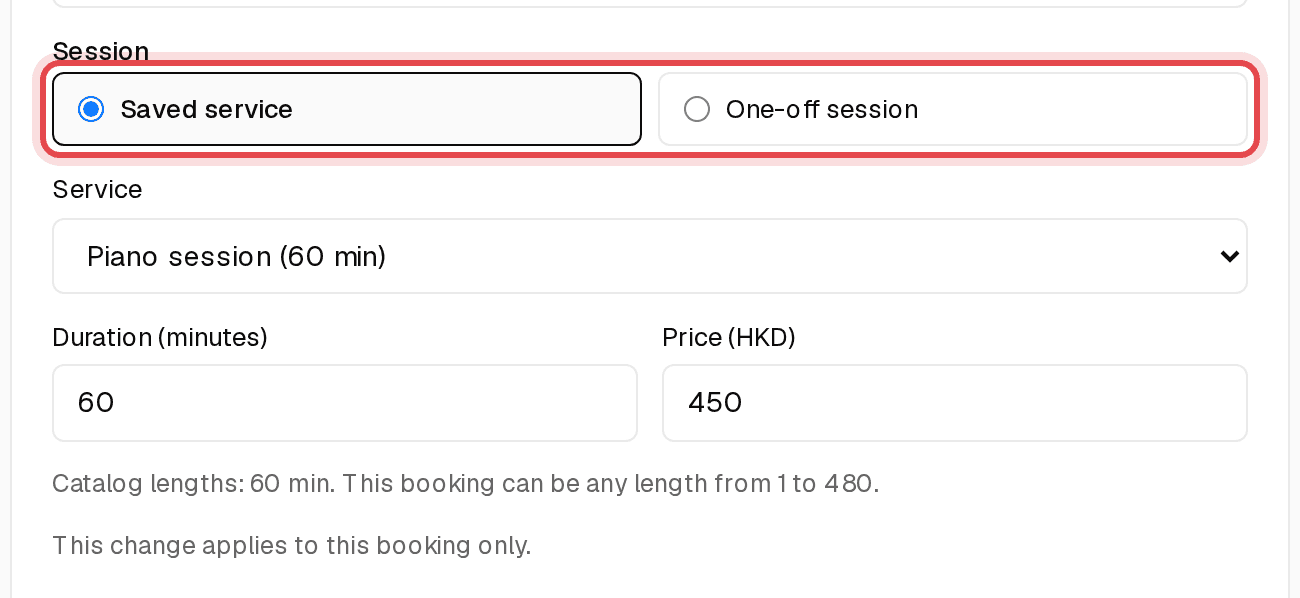
Tip: Tick Save as a service on a one-off to reuse it next time.
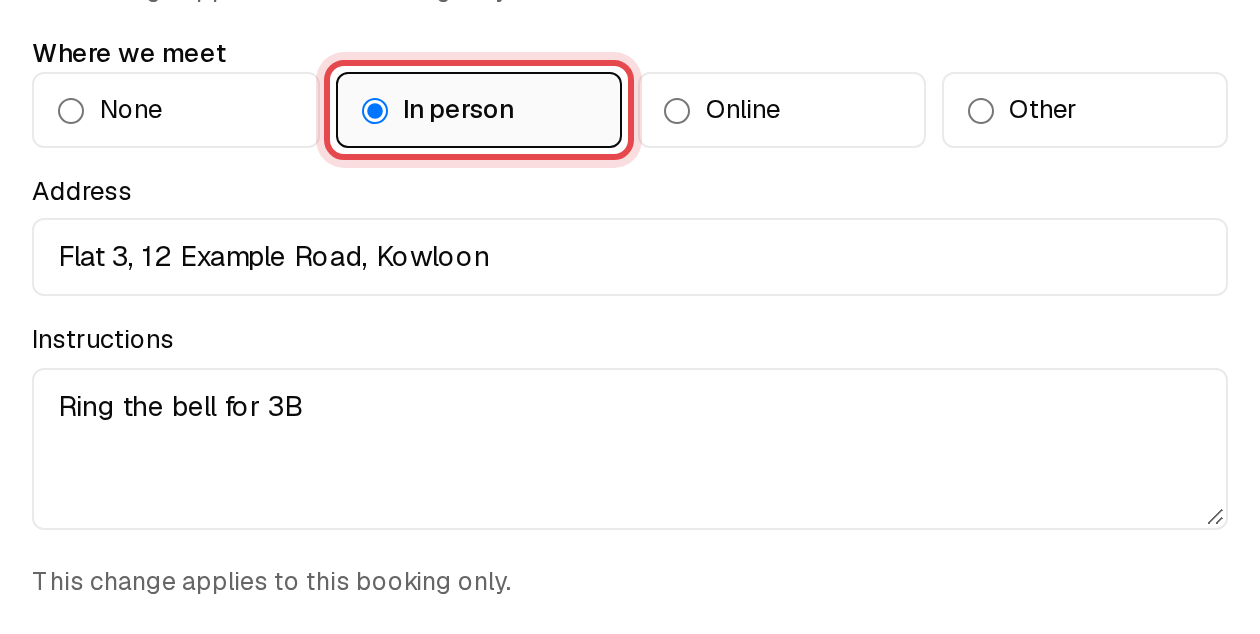
Step 4: Set where you meet
Under Where we meet, pick In person (add the address), Online (add the meeting link) or Other. Clients see it in their confirmation.
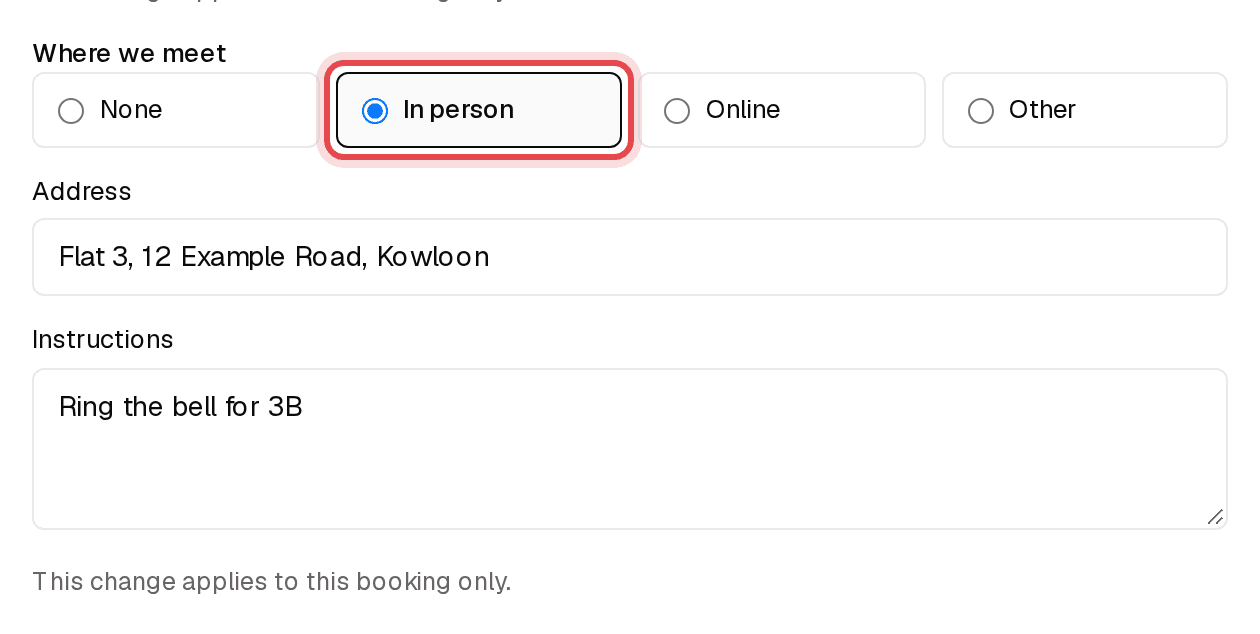
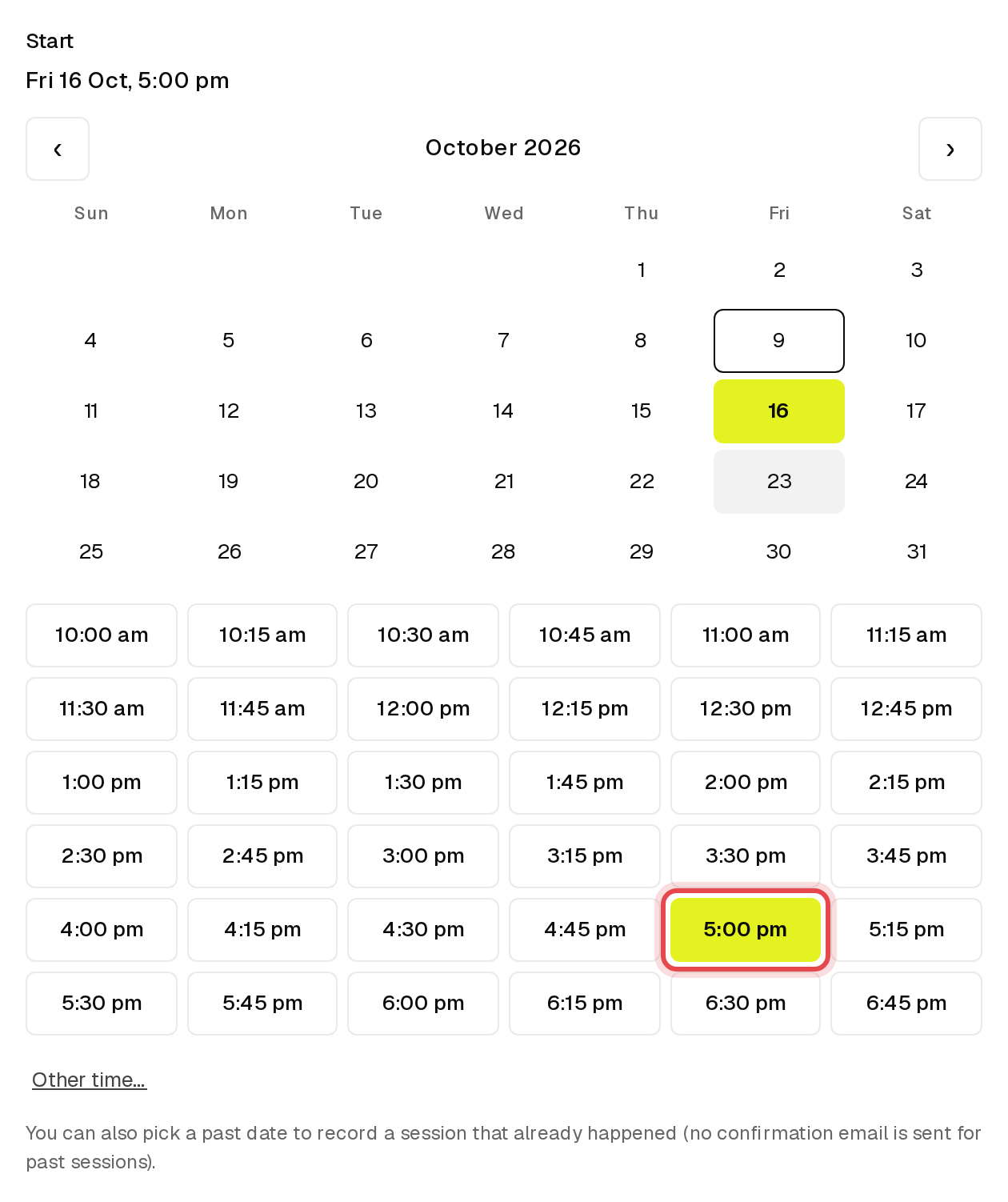
Step 5: Pick the date and time
Choose a day in the calendar, then a start time.
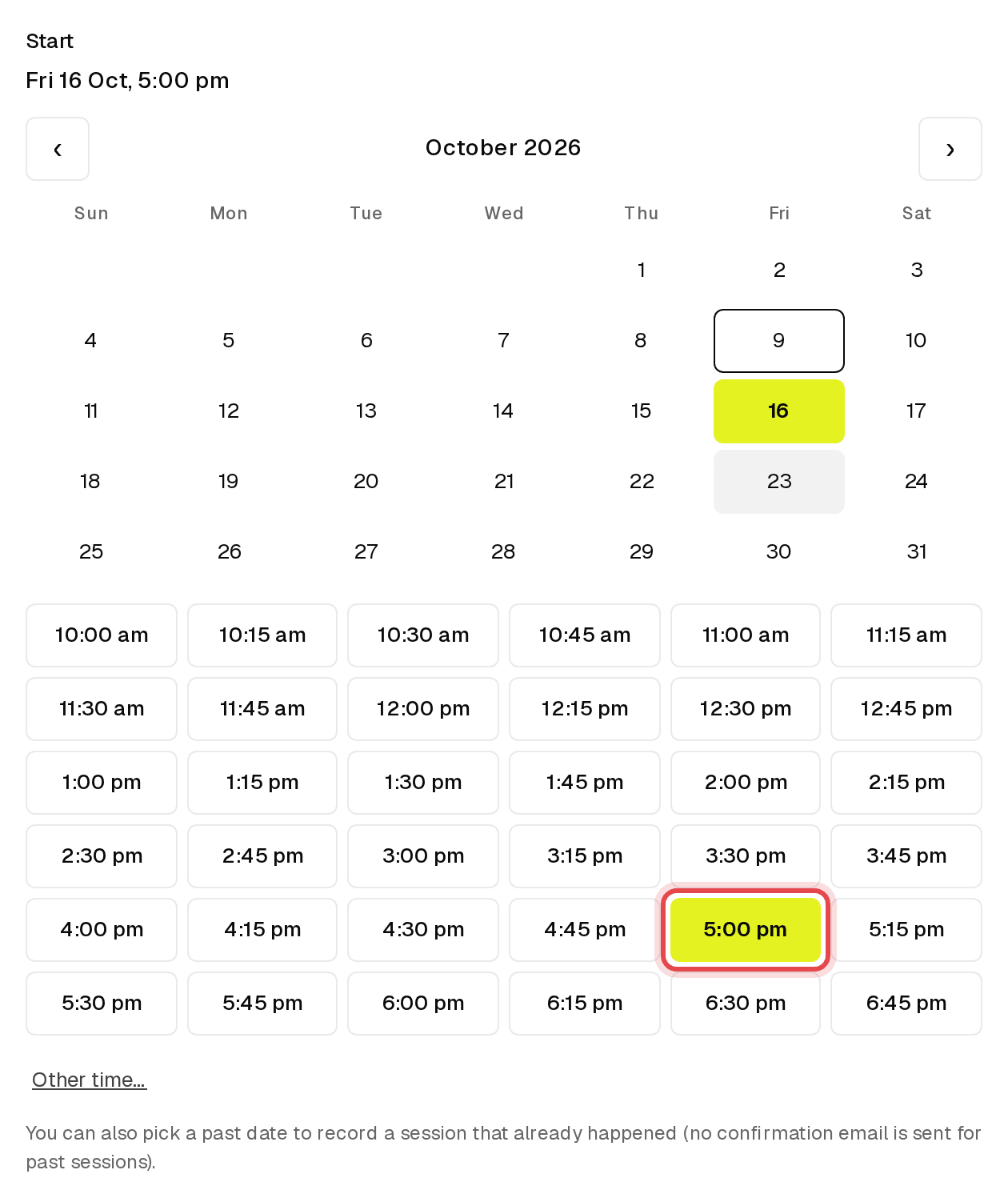
Tip: Pick a past date to record a session that already happened. It's saved as completed and no confirmation email is sent.
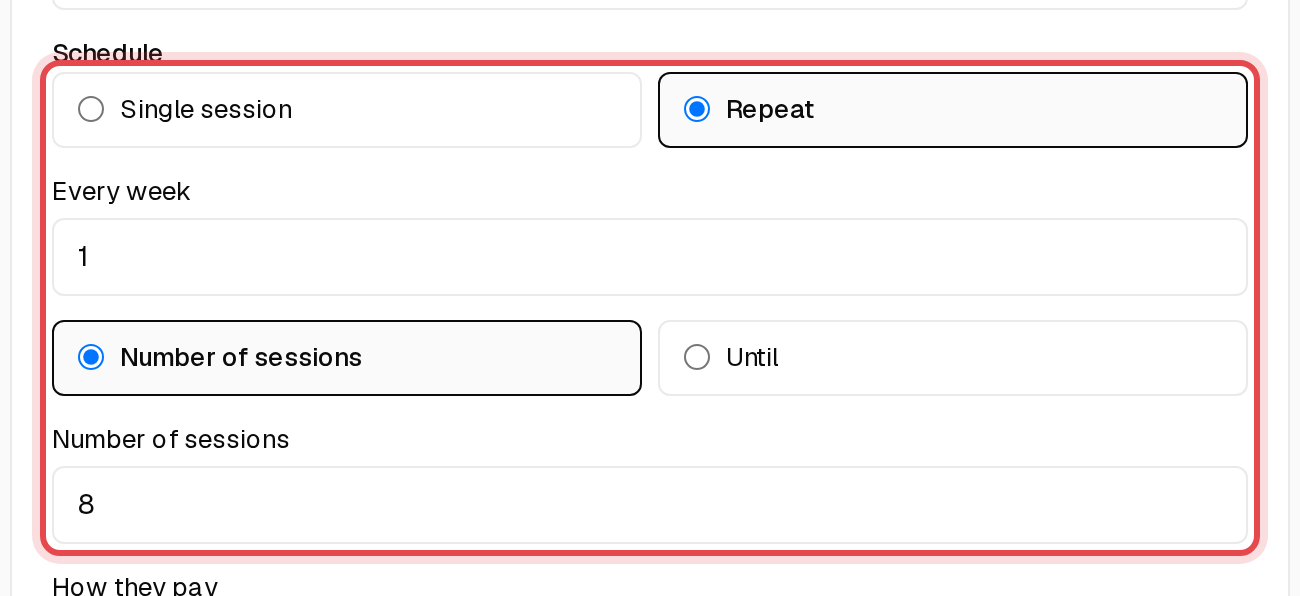
Step 6: One session or a repeat
Leave Single session, or choose Repeat and set how often and the Number of sessions (or an Until date).
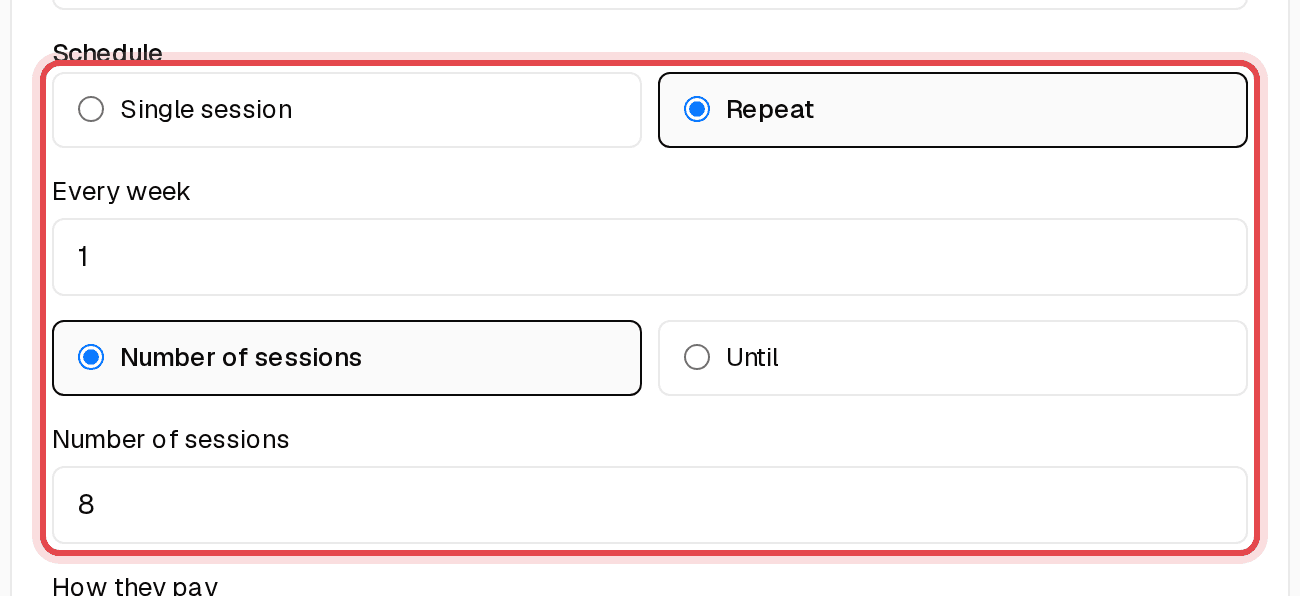
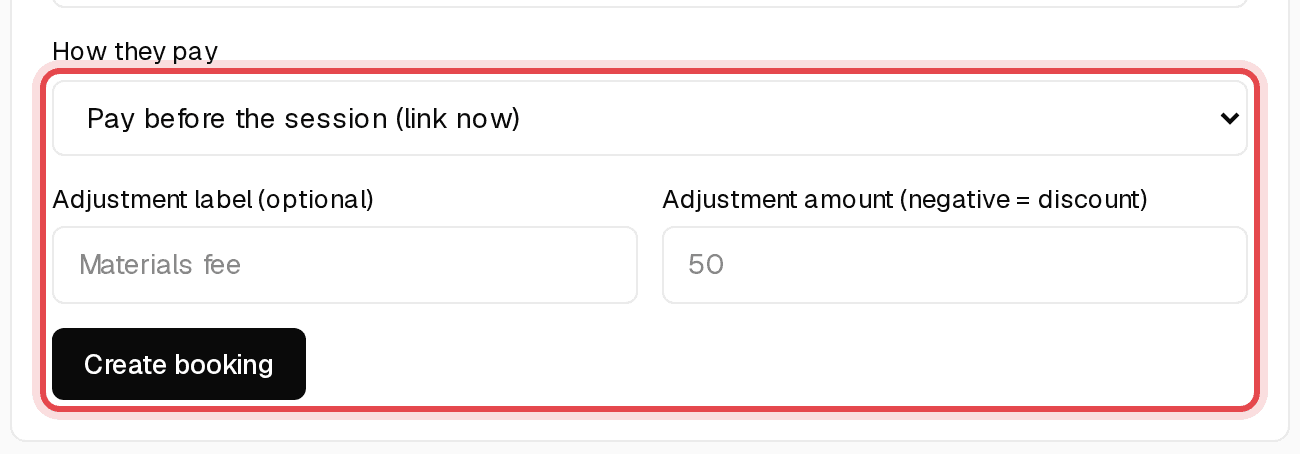
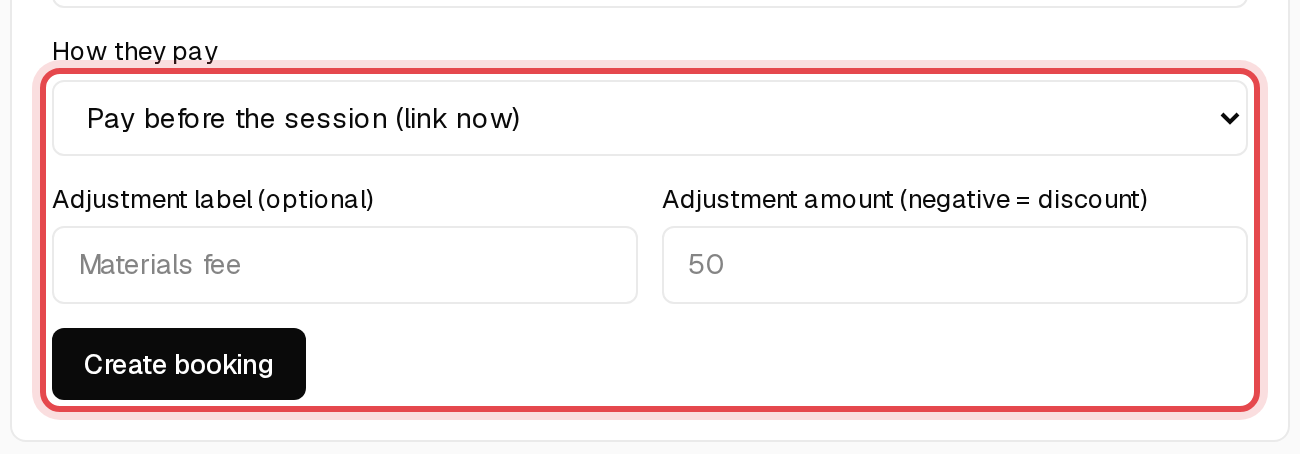
Step 7: Choose how they pay and create the booking
Pick an option under How they pay, then click Create booking. Upcoming sessions get a confirmation email.